
Going on holiday or stepping away from the office? A vacation message (also known as an out-of-office reply) ensures that anyone who emails you will receive an immediate automatic response letting them know you are unavailable. DirectAdmin makes it easy to set up, schedule, and disable vacation messages — all from the Email Manager. Here is a complete guide.
What Is a Vacation Message vs Autoresponder?
Both vacation messages and autoresponders send automatic replies to incoming email, and in many DirectAdmin installations they share the same underlying feature. However, the intended purpose differs:
- Vacation Message: Specifically designed for short-term absences. It is typically set with a start date and an end date, and DirectAdmin will only reply once per sender within a given period to avoid flooding them with repeated auto-replies.
- Autoresponder: A more general-purpose automatic reply that can run indefinitely and replies to every incoming message.
In practical terms, use a vacation message for planned absences like annual leave, holidays, or conferences. Use an autoresponder for ongoing automated acknowledgements such as support ticket confirmations.
How to Enable a Vacation Message
- Log in to DirectAdmin and navigate to Email Manager.
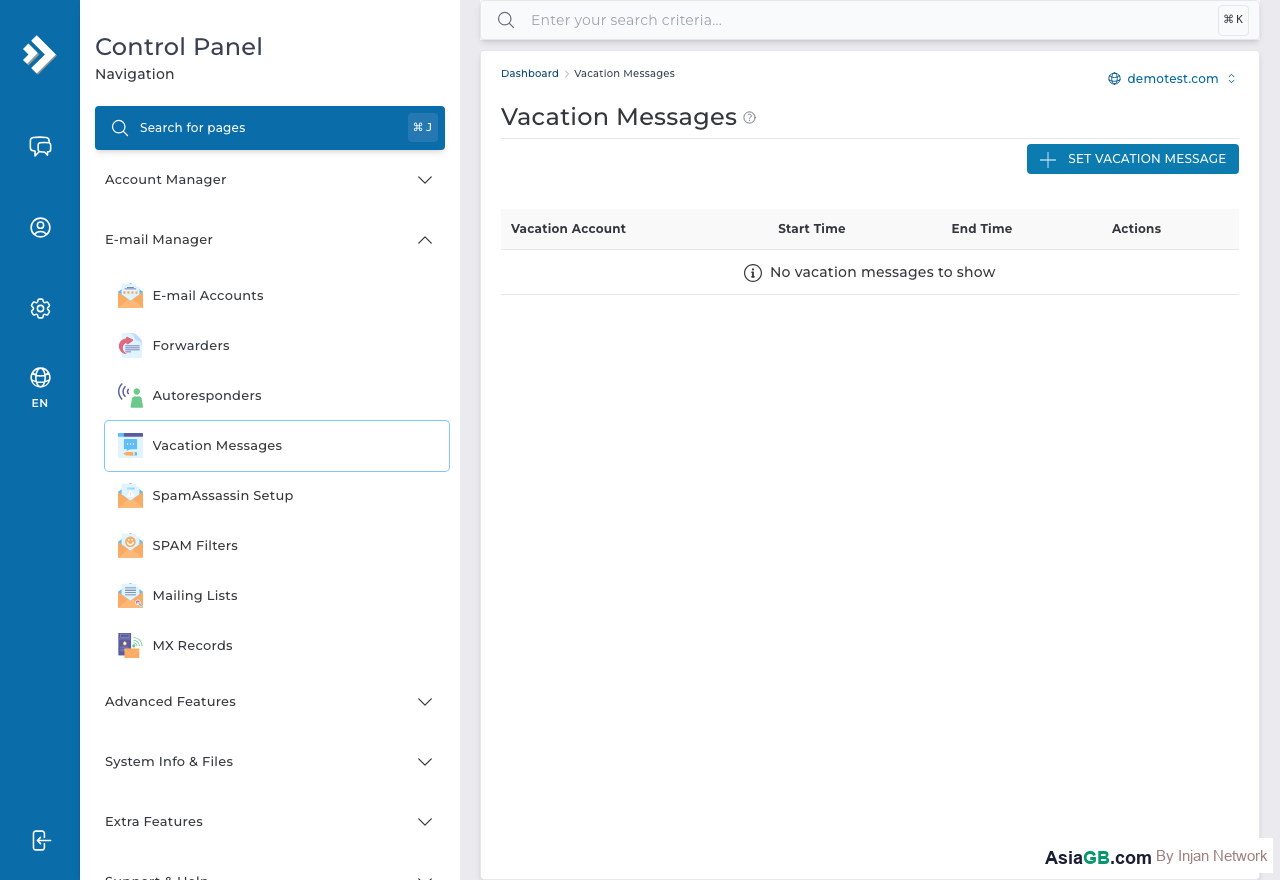
- Click on Vacation Message (sometimes listed under Autoresponders depending on your DirectAdmin version).
- Select the email account for which you want to activate the vacation message.
- Toggle the vacation message to Enabled or check the Enable box.
- Fill in the message subject and body (see sample below).
- Set the Start Date and End Date if applicable.
- Click Save.
Setting the Message and Dates
When writing your vacation message, keep it concise and informative. Senders want to know two key things: when you will be back, and what they should do if the matter is urgent. Always include:
- Your expected return date
- An alternative contact person or phone number for urgent matters
- A polite acknowledgement that you will reply when you return
Set the Start Date to the first day you will be away and the End Date to your return date. DirectAdmin will automatically deactivate the message when the end date passes.
How to Disable When You Return
If you set an end date, DirectAdmin will disable the vacation message automatically. If you did not set a date or returned earlier than planned, disable the message manually:
- Go to Email Manager → Vacation Message.
- Select the email account.
- Uncheck the Enable option or set the status to Disabled.
- Click Save.
This is important — leaving a vacation message active after you have returned gives a poor impression to customers and colleagues who receive out-of-office replies days after you are back at your desk.
Sample Away Message (English and Thai)
English version:
Subject: Out of Office — I will be back on [Return Date]
Thank you for your email. I am currently out of the office from [Start Date] to [Return Date] with limited access to email. I will respond to your message as soon as possible upon my return. For urgent matters, please contact [Colleague Name] at [[email protected]] or call [Phone Number]. Best regards, [Your Name]
Thai version:
หัวข้อ: ไม่อยู่ที่ทำงาน — จะกลับมาในวันที่ [วันที่กลับ]
ขอบคุณสำหรับอีเมลของท่าน ขณะนี้ดิฉัน/ผมไม่อยู่ที่ทำงานตั้งแต่วันที่ [วันเริ่ม] ถึง [วันที่กลับ] และมีโอกาสเช็คอีเมลได้จำกัด จะติดต่อกลับโดยเร็วที่สุดเมื่อกลับมา หากมีเรื่องเร่งด่วน โปรดติดต่อ [ชื่อผู้ประสานงาน] ที่ [อีเมล] หรือโทร [เบอร์โทรศัพท์] ขอบคุณครับ/ค่ะ
Best Practice: Always include your exact return date and at least one alternative contact method in your vacation message. Vague messages like "I am currently away" frustrate senders who have time-sensitive requests. A clear return date lets people decide whether to wait for you or seek help elsewhere — and it sets a professional, courteous tone even when you are not available.
When to Use a Vacation Message vs an Autoresponder
Although both features send automatic replies, they serve different purposes and behave differently. Understanding this distinction helps you choose the right tool for each situation.
Use a Vacation Message when you are temporarily unavailable and want to notify senders without spamming them with repeated replies. Common scenarios include annual leave, public holidays, travel without reliable internet access, attending multi-day conferences, and short-term personal absences. The key behaviour is that DirectAdmin will only send the vacation reply to each unique sender once within a defined period (often 7 days) — so even if the same person emails you five times that week, they receive only one auto-reply.
Use an Autoresponder when you need to reply to every single incoming message regardless of the sender's history. This is appropriate for order confirmation systems, support ticket acknowledgements, newsletter sign-up confirmations, or any workflow where every message deserves an individual automated response.
- Going on holiday for 2 weeks → Vacation Message
- Confirming that a support request was received → Autoresponder
- Out sick for a few days → Vacation Message
- Acknowledging every newsletter sign-up → Autoresponder
Writing an Effective Vacation Reply Message
The content of your vacation message matters as much as the fact that you have one enabled. A well-written away message respects the sender's time and sets accurate expectations. Follow these guidelines when composing your message:
- State your exact return date — "I will return on 20 June 2026" is far more useful than "I will be back soon".
- Acknowledge the message — Thank the sender for writing and confirm that you will respond upon your return.
- Provide an alternative contact — Name a colleague and their email address for urgent matters so senders are not left with no options.
- Match the language of your senders — If you receive emails in both Thai and English, write the message in both languages.
- Keep it concise — Aim for three to five sentences. Long vacation messages are rarely read in full.
- Avoid sharing too much personal detail — You do not need to explain where you are travelling or why you are away. A simple "I am out of the office" is sufficient.
For team accounts, coordinate with your manager or team lead so that at least one person remains reachable. Your vacation message should reflect who that backup person is, so senders always have a path to getting help even while you are away.
Verifying Your Vacation Message Is Active or Disabled
After enabling or disabling a vacation message, it is good practice to verify that the change has taken effect. Here is how to confirm the current status in DirectAdmin:
- Log in to DirectAdmin and navigate to Email Manager.
- Click Vacation Messages and select the relevant email account.
- Check whether the Enable checkbox is ticked. If it is ticked, the vacation message is active; if it is unticked, it is disabled.
- To perform a live test, send a test email from a different email address (such as a Gmail or personal account) to the account. If a vacation reply arrives within a few minutes, the message is active. If no reply comes through, the feature is disabled.
Note that the first test email to a given sender will always trigger the vacation reply. If you test from the same address twice, the second message may not receive a reply because the interval timer has started. Use a different sender address for the second test if needed. Also remember to remove any test entries from the vacation message sent-log if you want to reset the interval for that address.
Hosting + Email — All in One
AsiaGB hosting plans include professional email features with your own domain name — vacation messages, forwarders, Webmail and more.
View Hosting Plans