
Having a professional email address that matches your domain name — such as [email protected] — builds trust with customers and makes your business look more credible. DirectAdmin's Email Manager makes it straightforward to create, configure, and manage email accounts without needing any technical expertise. This guide walks you through everything from creating your first account to setting it up on your phone or desktop email client.
What Are Email Accounts in DirectAdmin?
Email accounts in DirectAdmin are mailboxes hosted directly on your web server. Unlike using a free email provider, hosting your own email under your domain gives you full control over addresses, storage quotas, and security settings. Each account you create gets its own inbox, sent folder, and trash — fully functional just like any commercial email service.
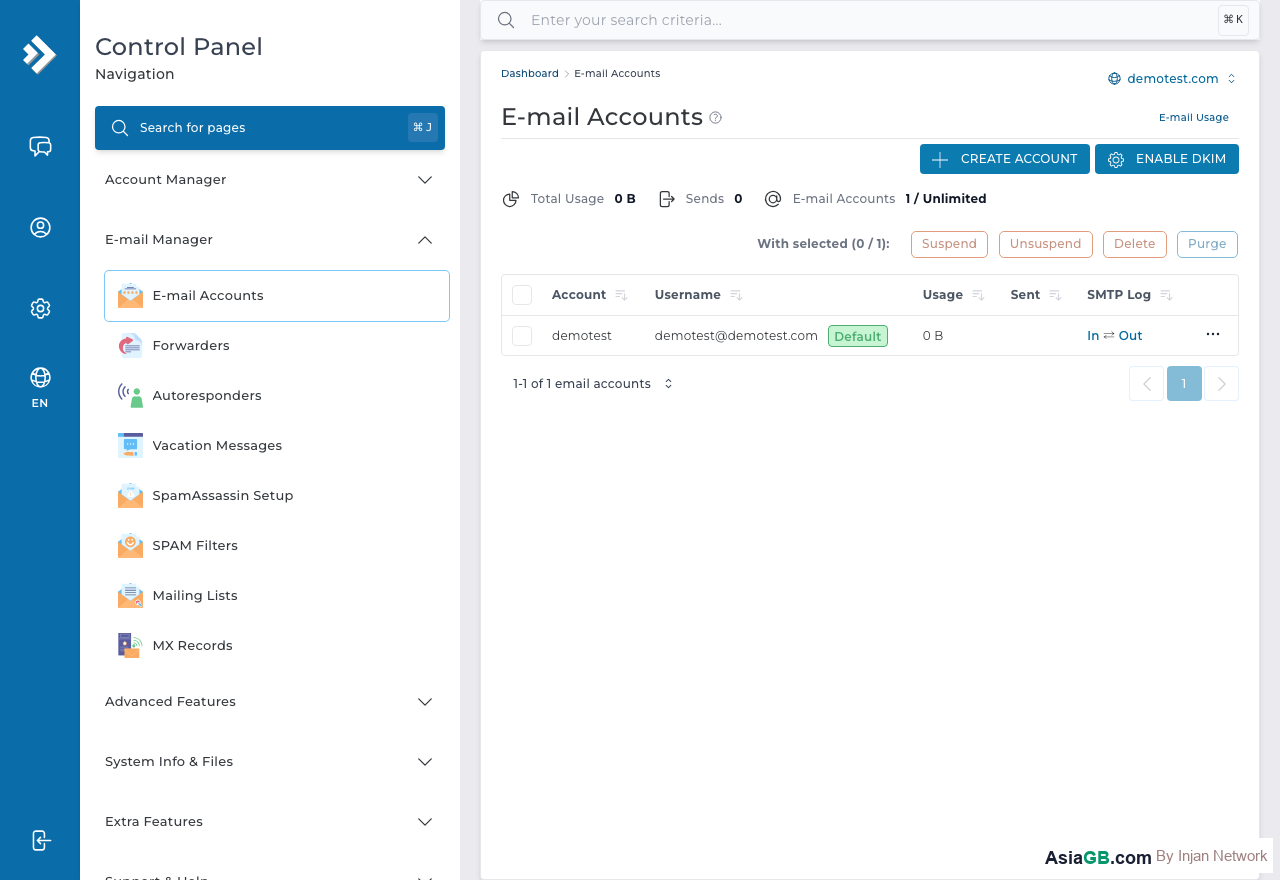
DirectAdmin's Email Manager (found under the Email Manager section of your control panel) is the central hub for all email-related tasks. From here you can create new accounts, set passwords, adjust storage limits, and quickly launch Webmail to read your messages directly in a browser.
How to Create a New Email Account
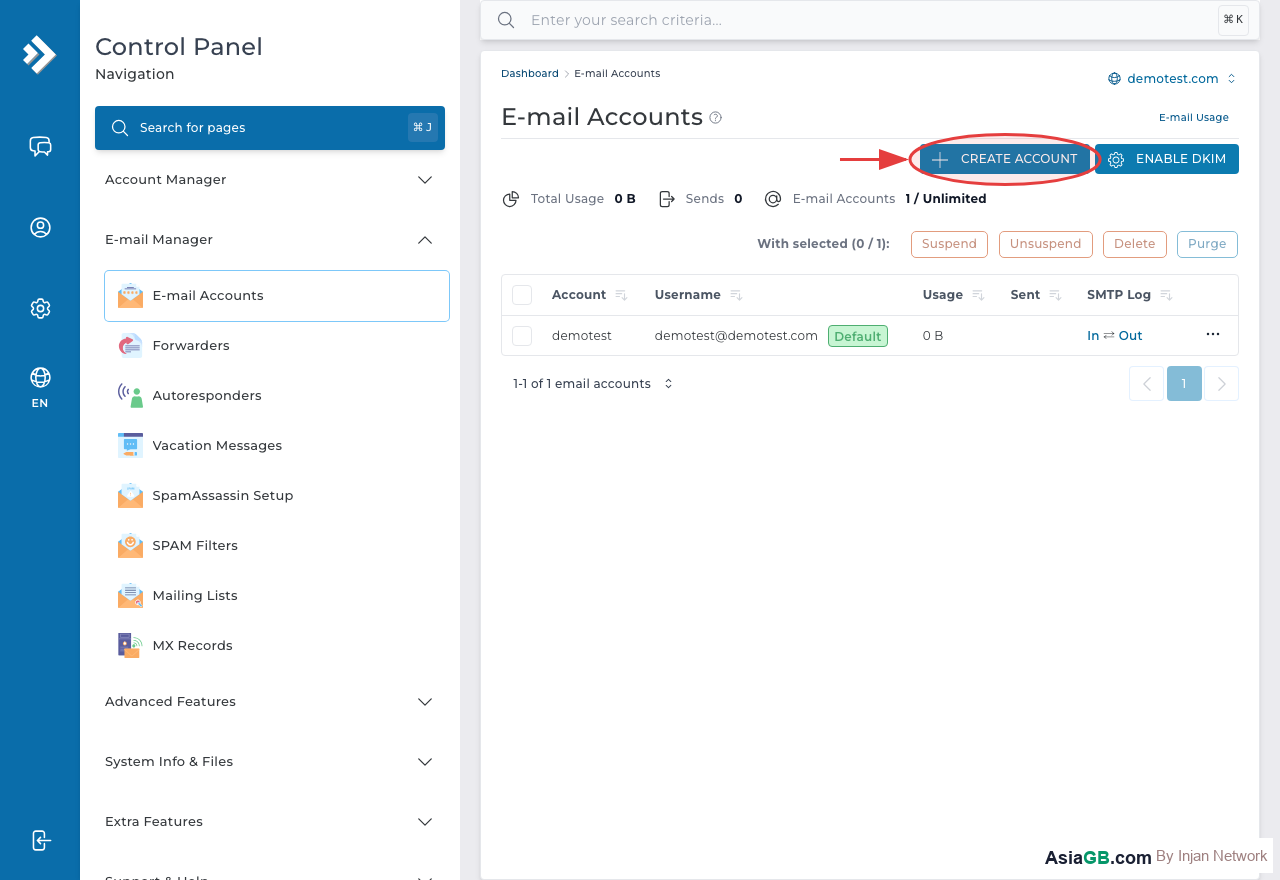
Creating a new email account in DirectAdmin takes less than a minute. Follow these steps:
- Log in to DirectAdmin and click on Email Manager in the Your Account section.
- Click Create Account or the + (plus) icon.
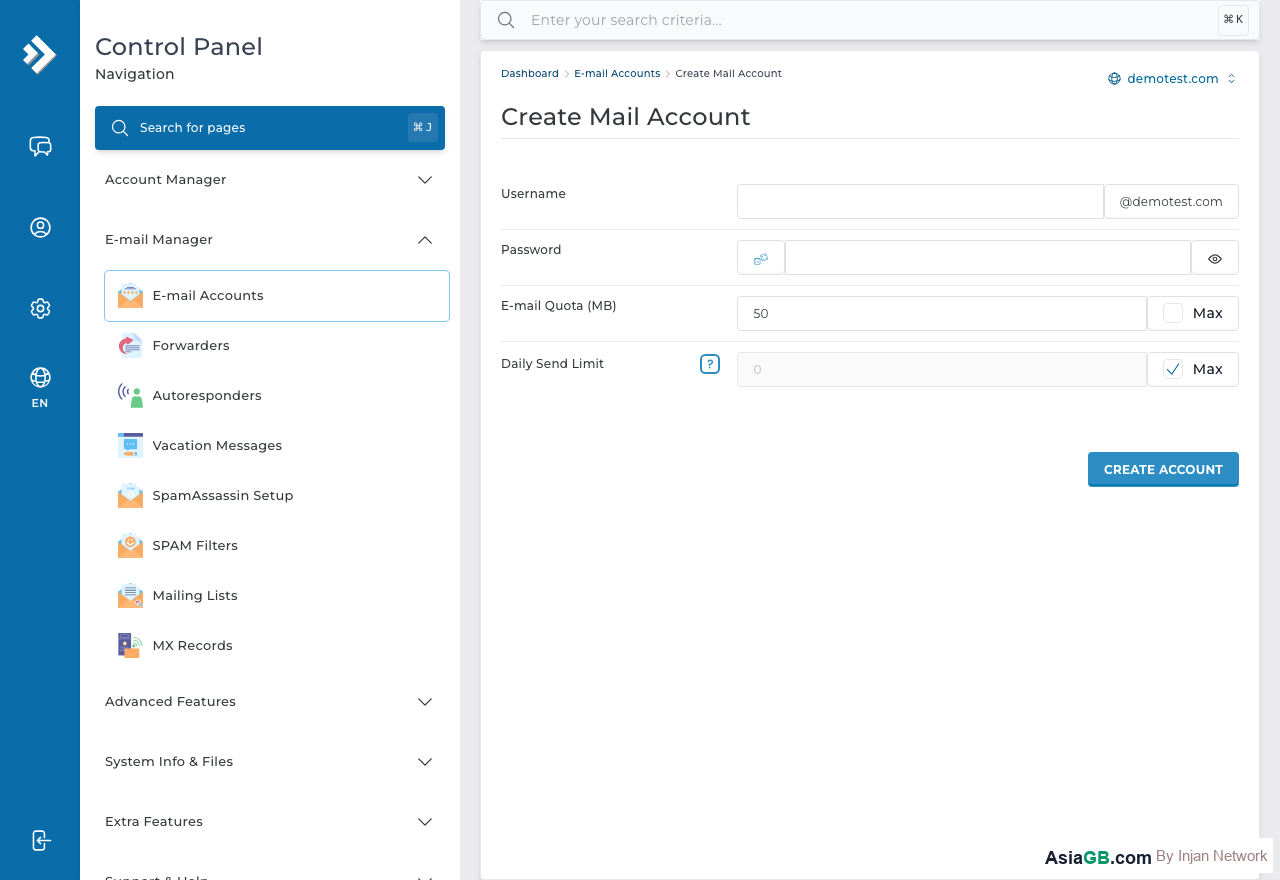
- In the Username field, enter the part before the @ symbol (e.g.,
info,sales,support). - Enter a strong Password. Use at least 12 characters with a mix of uppercase, lowercase, numbers, and symbols. You can also click the random password generator button.
- Set the Quota — this is the maximum storage space this mailbox can use. A common setting is 500 MB to 2 GB for standard accounts. Enter
0for unlimited (subject to your hosting plan's total limit). - Click Create. Your new email account is ready immediately.
Once created, the account appears in your email accounts list. You can now access it via Webmail or configure it in an email client such as Outlook or Apple Mail.
How to Change an Email Password
If you need to update the password for an existing email account — whether for security reasons or because a team member has left — the process is simple:
- Go to Email Manager in DirectAdmin.
- Find the email account in the list and click on it (or click the edit/pencil icon).
- Enter a new password in the Password field and confirm it.
- Click Modify or Save. The password change is immediate.
After changing the password, remember to update the credentials in any email clients or apps that use that account — otherwise those apps will fail to connect.
How to Delete an Email Account
To remove an email account you no longer need:
- Open Email Manager in DirectAdmin.
- Check the box next to the account(s) you want to delete.
- Click Delete Selected and confirm when prompted.
Important: Deleting an email account permanently removes all messages stored in that mailbox. Always export or back up any important emails before deleting an account.
Accessing Webmail via Roundcube
DirectAdmin includes Roundcube as its built-in Webmail client, allowing you to read, send, and organize your email directly from any web browser without any additional software.
To access Webmail, simply navigate to:
https://yourdomain.com/webmail- Or
https://mail.yourdomain.com(if your DNS is configured accordingly)
Log in with your full email address (e.g., [email protected]) and the email account password. Roundcube provides a clean, modern interface with support for folders, contacts, filters, and signatures. It works on both desktop and mobile browsers.
Setting Up an Email Client (Outlook, iOS Mail, etc.)
If you prefer to use a desktop or mobile email application rather than Webmail, you can configure any standard IMAP/SMTP client. Use the following settings:
IMAP Settings (Incoming Mail)
- Server: mail.yourdomain.com
- Port: 993 (SSL/TLS)
- Username: your full email address (e.g., [email protected])
- Password: your email account password
- Encryption: SSL/TLS
SMTP Settings (Outgoing Mail)
- Server: mail.yourdomain.com
- Port: 465 (SSL) or 587 (STARTTLS)
- Username: your full email address
- Password: your email account password
- Authentication: Required (Login or Plain)
These settings work with Microsoft Outlook, Apple Mail, Mozilla Thunderbird, iOS Mail, Gmail (via Add Account), and virtually any standard email application. If you experience connection issues, verify that your domain's DNS records are correctly pointed to your hosting server.
POP3 vs IMAP: Which Protocol Should You Use?
DirectAdmin supports both POP3 and IMAP for receiving mail, plus SMTP for sending. Understanding the difference helps you choose the right configuration for your workflow and devices.
POP3 (Post Office Protocol 3)
POP3 downloads emails from the server to your local device. By default, downloaded messages are deleted from the server. This approach works well if you use a single computer and want to keep a local archive, but it means other devices will not see the same messages — once downloaded on your desktop, emails won't appear on your phone.
- POP3 Port: 110 (standard) or 995 (SSL/TLS)
- Best for: Single-device setups, offline access, minimizing server storage
IMAP (Internet Message Access Protocol)
IMAP keeps all your email stored on the server and syncs the same inbox across every device. When you read an email on your phone, it appears as read on your laptop too. Deleted messages, folder organization, and drafts stay in sync everywhere. This is the recommended choice for most people today.
- IMAP Port: 143 (standard) or 993 (SSL/TLS)
- Best for: Multi-device access, teams sharing devices, modern workflows
Recommendation: Always use IMAP with SSL/TLS (port 993) for the best security and cross-device experience. Use POP3 only if you need to download and permanently archive emails locally.
Configuring Outlook and Thunderbird with IMAP/SMTP
Once your email account is created in DirectAdmin, you can add it to any standard email client in a few minutes. Use the server settings below:
Server Settings Reference
- Incoming (IMAP): mail.yourdomain.com · Port 993 · Encryption: SSL/TLS
- Outgoing (SMTP): mail.yourdomain.com · Port 587 · Encryption: STARTTLS
- Username: your full email address (e.g., [email protected])
- Password: your email account password
- Authentication: required (Normal password / Login)
Setting Up Microsoft Outlook
- Open Outlook and go to File > Add Account.
- Enter your email address, then click Advanced options and check "Let me set up my account manually".
- Click Connect, then choose IMAP.
- Enter the incoming server:
mail.yourdomain.com, Port 993, SSL/TLS. - Enter the outgoing server:
mail.yourdomain.com, Port 587, STARTTLS. - Enter your username (full email) and password, then click Connect.
Setting Up Mozilla Thunderbird
- Go to Account Settings > Account Actions > Add Mail Account.
- Enter your name, email address, and password, then click Configure manually.
- Set Protocol to IMAP, Incoming Server:
mail.yourdomain.com, Port 993, SSL/TLS. - Outgoing (SMTP):
mail.yourdomain.com, Port 587, STARTTLS. - Authentication method: Normal password, then click Re-test to verify.
If you encounter a certificate error, confirm that a valid SSL certificate is installed on your hosting. You can install a free Let's Encrypt certificate from DirectAdmin's SSL Certificates section at any time.
Managing Email Quota When Your Mailbox Is Full
When a mailbox reaches its quota, the server rejects all new incoming messages. Senders receive a bounce error like "Mailbox full" or "Insufficient storage space." There are three practical ways to resolve this.
Option 1 — Increase the Quota
The quickest fix is to raise the quota in DirectAdmin's Email Manager. Log in, click the email account, change the quota value to a higher number (or 0 for unlimited), and click Modify. The change takes effect immediately.
Option 2 — Delete Old or Large Emails
Log into Roundcube Webmail or your email client and:
- Delete unnecessary messages in Inbox, Sent, Drafts, Trash, and Spam
- Permanently empty the Trash folder (right-click > Empty Trash)
- Sort by attachment size and delete large file attachments first — they consume the most space
Option 3 — Archive Emails Locally
If you use Outlook or Thunderbird, set up local archiving to move emails older than 6–12 months into a local .pst or .mbox file on your computer. This frees server space without losing any data. You can still search and open archived emails from your email client at any time.
For hosting plans with a fixed disk quota, check overall disk usage under DirectAdmin > System Info to confirm whether the space issue comes from email or website files.
Quota Management Tips: Set realistic quotas for each mailbox to prevent one heavy user from filling up your server's entire email storage. A typical business user needs 1–2 GB. Encourage staff to archive old emails locally or delete unnecessary attachments regularly. You can also monitor mailbox usage from the Email Manager overview and increase quotas individually as needed — no need to change everyone at once.
Need Unlimited Email Hosting?
AsiaGB hosting plans support unlimited email accounts with professional domain-based addresses, IMAP/SMTP access, and Webmail included.
View Hosting Plans