
A mailing list lets you send a single email to dozens, hundreds, or even thousands of subscribers at once — all from a single domain-based address. DirectAdmin includes a built-in mailing list manager powered by Majordomo, allowing you to create and manage lists directly from your hosting control panel. This guide explains everything you need to know about setting up and running a mailing list on DirectAdmin.
What Is a Mailing List? Who Should Use It?
A mailing list is a group email address that, when sent a message, automatically forwards it to every subscriber on the list. For example, if you create a list at [email protected] with 500 subscribers, sending one email to that address will deliver it to all 500 recipients simultaneously.
Mailing lists are ideal for:
- Sending regular newsletters to customers or community members
- Announcing new products, promotions, or company news
- Internal company announcements to all staff
- Managing discussion groups where all members can reply to the whole group
- Event notifications and reminders
Mailing List vs Email Forwarder
Both send email to multiple addresses, but they work differently:
- Email Forwarder: Redirects incoming email to a fixed, manually specified list of addresses. The list is set by the administrator and cannot be changed by recipients. Best for small, static groups (2–5 people).
- Mailing List: Uses a subscriber database that can grow and shrink over time. Subscribers can be added/removed by the administrator or (optionally) by the subscribers themselves. Best for larger, dynamic audiences.
How to Create a New Mailing List
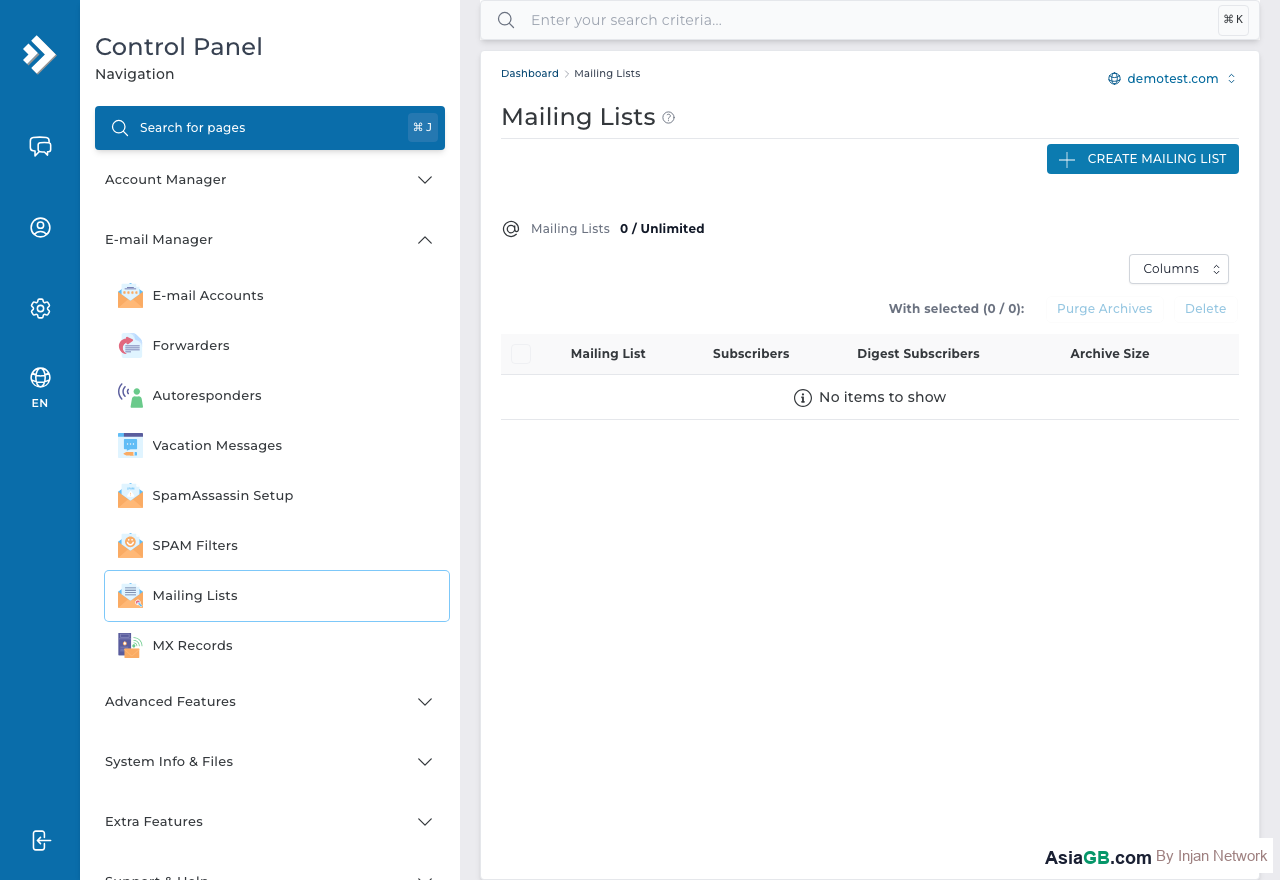
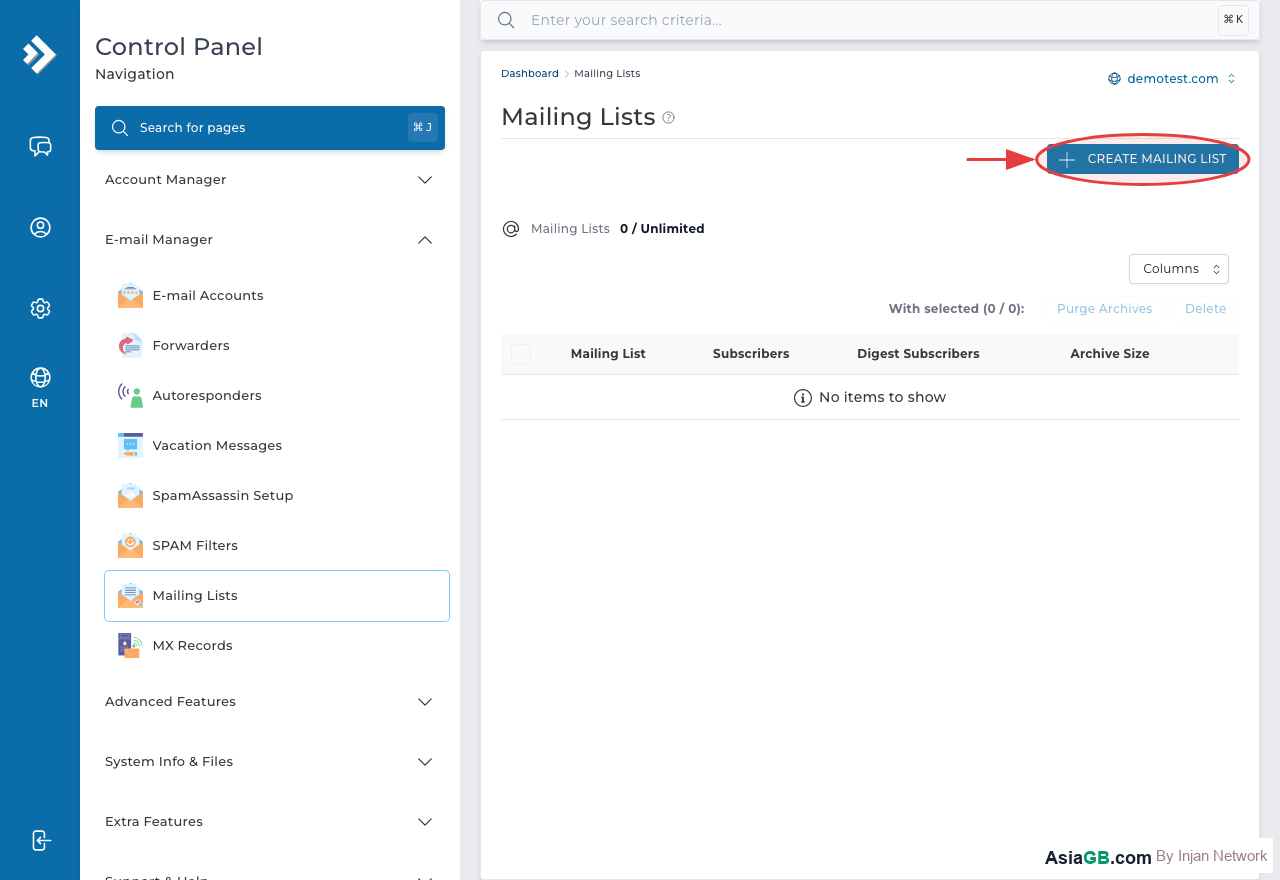
- Log in to DirectAdmin and navigate to Email Manager.
- Click on Mailing Lists.
- Click Create Mailing List or the + icon.
- Enter a List Name — this becomes the email address for the list (e.g.,
newsletterfor [email protected]). - Enter the Admin Password — this password is used to manage the list via email commands (required by Majordomo).
- Click Create. The list is created immediately.
Adding Subscribers to the List
After creating the list, you need to add subscribers:
- In the Mailing Lists section, click on the list name to open its management page.
- Find the Subscribers section and click Add Subscriber.
- Enter the email address of the subscriber and click Add.
- Repeat for each subscriber, or paste a bulk list of addresses if your DirectAdmin version supports it.
Subscribers can also self-subscribe by sending an email to [email protected] with the body text: subscribe listname.
Setting Up a Moderator
A moderator is a person responsible for approving messages before they are distributed to all subscribers. To add a moderator, enter the moderator's email address in the Moderator field when creating or editing the mailing list. When moderation is enabled, all messages sent to the list will be held pending until the moderator approves or rejects them — preventing spam or off-topic messages from reaching all subscribers.
Privacy Settings (Public vs Private)
DirectAdmin mailing lists offer privacy control:
- Public: Anyone can subscribe and anyone can send messages to the list. Good for open community discussions.
- Private: Only approved subscribers can receive messages, and typically only the administrator or approved senders can post. Better for internal announcements or controlled newsletters.
How to Send Email to the Entire List
To send a message to all subscribers, simply send an email to the list's address (e.g., [email protected]) from an authorized sender. All subscribers will receive a copy. If moderation is enabled, your message will be queued for moderator approval first.
How to Delete a List
To delete a mailing list you no longer need, go to Email Manager → Mailing Lists, check the box next to the list, and click Delete Selected. All subscriber data associated with that list will be permanently removed.
Mailing List vs Email Forwarder: A Deeper Look
Understanding the distinction between a mailing list and an email forwarder helps you choose the right tool for each use case. While both deliver email to multiple recipients, they differ fundamentally in architecture and use case suitability.
An email forwarder is a 1-to-1 (or 1-to-few) redirect mechanism. When mail arrives at the forwarder address, it is immediately relayed to a static list of recipients defined by the administrator. The recipient list is hardcoded — it cannot be changed by end users, and there is no concept of subscription management. Email forwarders are best for small internal teams where the group composition rarely changes.
A mailing list operates as a true broadcast channel. The subscriber database is dynamic — members can be added by the admin, added via bulk import, or they can self-subscribe using Majordomo email commands. Key capabilities that email forwarders lack include:
- Self-subscription and self-unsubscription by end users without admin involvement
- Moderation queues that hold messages pending approval before distribution
- Bounce tracking to identify and remove invalid subscriber addresses over time
- Access control to restrict who is allowed to send messages to the list
- Archive capabilities so members can review past messages
In summary: use a forwarder for small, stable groups; use a mailing list when your audience is larger, dynamic, or requires message control.
Managing Subscribers: Manual, Self-Subscribe, and Bulk Import
DirectAdmin gives you three ways to manage the subscriber base for any mailing list, each suited to different scenarios.
Manual Addition via DirectAdmin
The simplest approach: log in to DirectAdmin, go to Email Manager → Mailing Lists, click the list name, and enter subscriber addresses directly in the Subscribers field. This is ideal when you have a short, controlled list that changes infrequently. Enter one address per line and click Save.
Self-Subscribe via Majordomo Commands
To let users manage their own subscriptions, share the following instructions with them. They simply send an email to [email protected] with the command in the message body (not the subject line):
- To subscribe:
subscribe listname - To unsubscribe:
unsubscribe listname - To subscribe a specific address:
subscribe listname [email protected]
Majordomo will send a confirmation email to complete the process. This reduces the administrative burden significantly when dealing with a growing audience.
Bulk Import for Large Lists
If you are migrating from another platform or need to add hundreds of subscribers at once, prepare a plain text list with one email address per line. Paste this directly into the Subscribers field in DirectAdmin. Some versions support uploading a .csv file. Always verify that you have legitimate consent from all imported addresses before adding them to a list.
Controlling Who Can Send: Moderators, Open Lists, and Closed Lists
Controlling which senders can post to your mailing list is essential for maintaining list quality, preventing spam, and ensuring messages are appropriate for your audience.
Open List
An open list allows anyone — including non-subscribers — to send messages to the list address. All messages are immediately distributed to all subscribers without review. This setup is suitable for open community discussion groups or support forums where you want free-flowing conversation. The downside is that it is more vulnerable to spam or off-topic posts.
Closed List (Restricted Posting)
A closed list restricts posting to approved senders only — typically the administrator and perhaps a handful of trusted contributors. All other senders are rejected or their messages are quietly discarded. This is the recommended configuration for company announcements, newsletters, and any one-way communication channel where subscribers should receive content but not respond to the group as a whole.
Adding a Moderator
A moderator sits between senders and subscribers, reviewing each message before it reaches the full list. When a message is submitted, the moderator receives an email notification and can approve or reject it with a simple reply command. To assign a moderator in DirectAdmin, enter the moderator's email address in the Moderator field when creating or editing the mailing list. Moderation is highly recommended for any list with an external or unknown sender base.
Common Mailing List Problems and How to Solve Them
Even well-configured mailing lists encounter operational challenges. Here are the most common issues and how to handle them effectively.
Bounce Handling
A bounce occurs when a message cannot be delivered to a subscriber — usually because the address no longer exists, the mailbox is full, or the recipient's mail server is temporarily unavailable. Persistent bounces (hard bounces) indicate permanently invalid addresses that should be removed from your list. Review bounce reports regularly and remove hard-bounce addresses promptly. A high bounce rate damages your server's IP reputation and may cause legitimate emails to be blocked by other mail servers.
Managing Unsubscribe Requests
If a subscriber wants to leave the list but the Majordomo self-service process is not working, you can remove them manually via DirectAdmin. Simply open the list, find and delete their address, and save. Always honor unsubscribe requests promptly — ignoring them increases spam complaint risk and damages trust.
Reducing Spam Complaints
A spam complaint occurs when a recipient clicks "Report Spam" on one of your list messages. Enough complaints can cause your server's IP address to be blacklisted by major email providers. To minimize complaints: only add subscribers who have explicitly opted in; include a clear unsubscribe instruction in every email; avoid sending too frequently; and maintain good list hygiene by removing inactive and bouncing addresses regularly. Also ensure your domain has correct SPF, DKIM, and DMARC records configured — these authentication mechanisms significantly improve your sender reputation and deliverability.
Emails Not Reaching Some Subscribers
If some subscribers report not receiving list emails, the messages may be caught by their spam filters or blocked by their mail server. Ask affected subscribers to whitelist your list's address in their email client. Also check your server logs for delivery errors. Consistent issues may indicate that your sending IP has been blacklisted — use a blacklist checking tool to verify and take corrective action if needed.
Best Use Cases: Use DirectAdmin mailing lists for newsletters, product announcements, and customer updates. For small, static groups like a team of 3–5 people, a simple email forwarder is usually more convenient. For growing audiences or when you need subscriber management and moderation, a proper mailing list is the right choice. Always obtain consent from subscribers before adding them to a list to comply with email marketing best practices.
Full-Featured Email Hosting at AsiaGB
AsiaGB hosting plans include mailing lists, email accounts, forwarders, autoresponders, and Webmail — everything your business needs.
View Hosting Plans