
Email forwarders are one of the most practical features in DirectAdmin's Email Manager. They let you receive messages at a professional domain address while having them automatically delivered to any inbox you already check regularly — including Gmail, Hotmail, or another business account. This guide explains what forwarders are, how they differ from regular email accounts, and how to set them up step by step.
What Are Email Forwarders and What Do They Do?
An email forwarder is a routing rule that automatically redirects all incoming messages from one email address to one or more destination addresses. When someone sends an email to [email protected], DirectAdmin receives the message and instantly forwards it to whatever destination(s) you have configured — without storing a copy on the server (unless you specifically choose to keep one).
Forwarders are extremely useful for businesses that want a professional-looking domain address but prefer to manage their email in an existing personal or business inbox. They require no additional storage quota on your hosting account, and the forwarding process happens automatically in the background.
Difference from Regular Email Accounts
It is important to understand the key distinction between a forwarder and a full email account:
- Email Account: Has its own mailbox, stores messages on the server, requires IMAP/SMTP credentials to access, and counts against your storage quota.
- Email Forwarder: Has no mailbox of its own, does not store messages (unless configured to do so), and simply passes email on to another address. No login credentials are needed for the forwarding address itself.
Choose a forwarder when you want a domain-based address but don't need a separate inbox on the server. Choose a full email account when you need an independent, dedicated mailbox.
How to Create a New Forwarder (Step by Step)
- Log in to DirectAdmin and navigate to Email Manager.
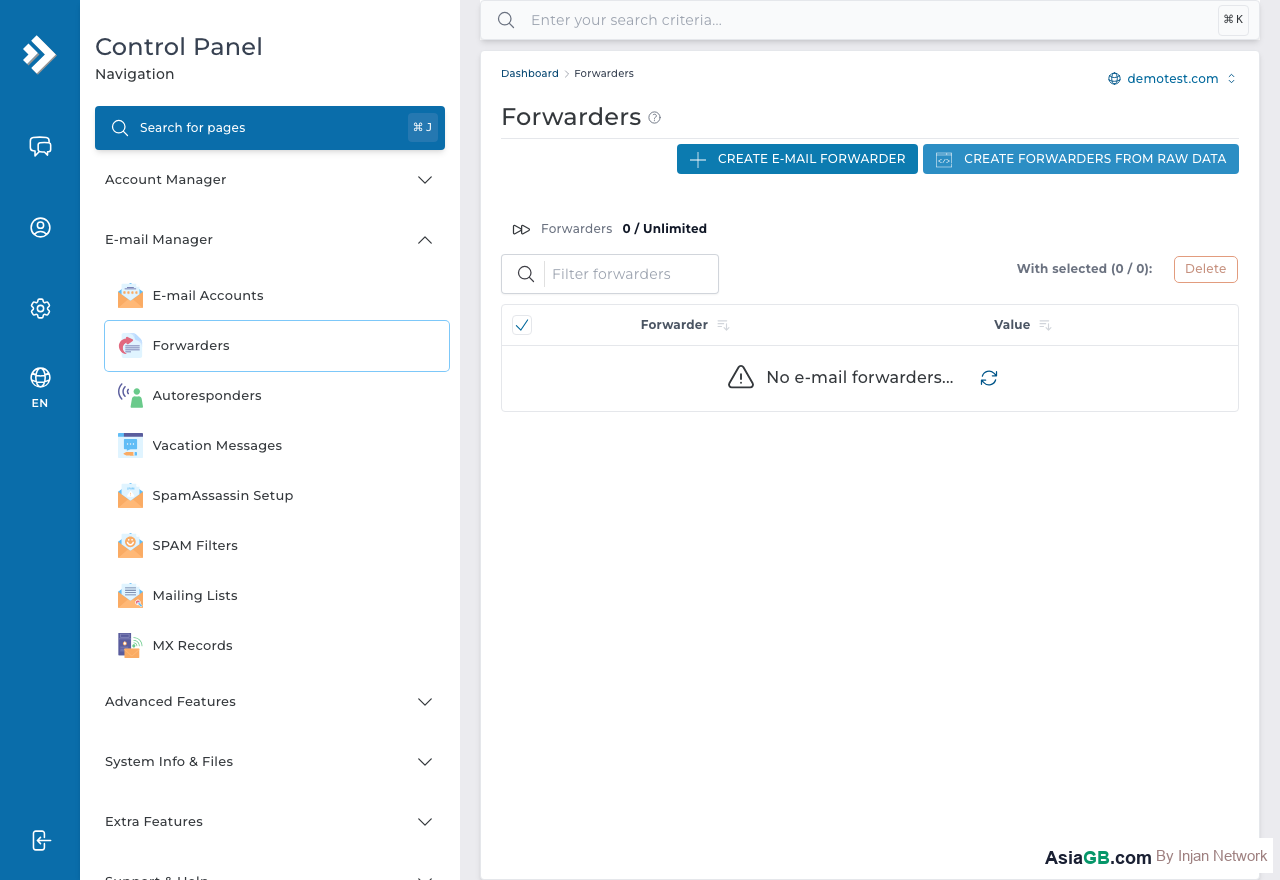
- Click on Forwarders in the Email Manager section.
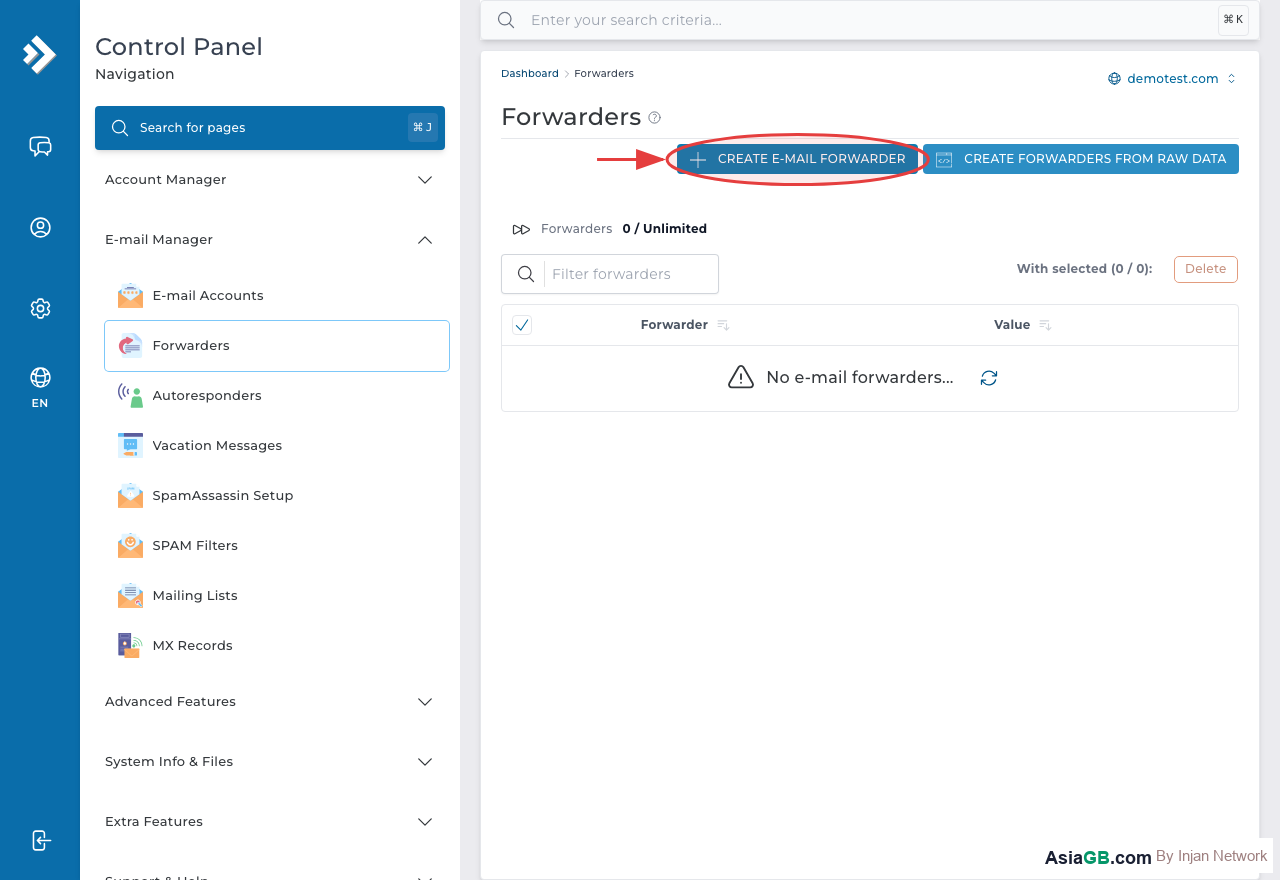
- Click Add Forwarder or the + icon.
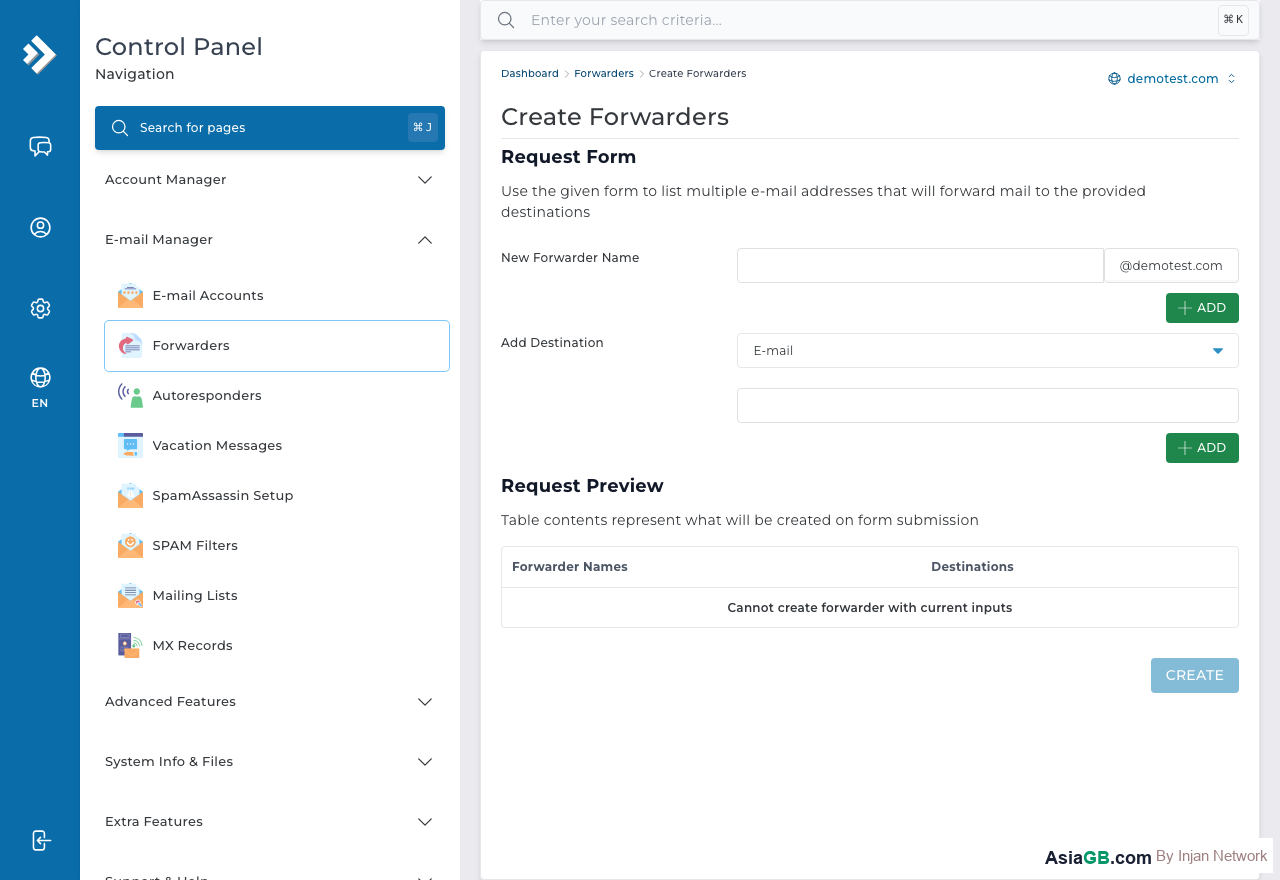
- In the From field, enter the local part of the address you want to create (e.g.,
salesfor [email protected]). Your domain will be shown alongside it automatically. - In the To field, enter the destination email address where messages should be sent (e.g.,
[email protected]). - Click Add. The forwarder is active immediately.
From this point on, any email sent to the forwarding address will automatically be redirected to the destination you specified.
Forwarding to Multiple Addresses Simultaneously
DirectAdmin allows you to forward a single address to multiple destinations at the same time. This is ideal if you want both the owner and a team member to receive all inquiries from a shared address like [email protected].
To forward to multiple addresses, simply enter each destination on a separate line (or separated by commas, depending on your DirectAdmin version) in the To field when creating or editing the forwarder. Each recipient will receive an independent copy of every message sent to that address.
Forward with a Copy Kept in the Mailbox
If you want to forward email to an external address AND keep a copy stored in a local mailbox on the server, you can combine a forwarder with an existing email account. When configuring the forwarder, add both the external address and the local mailbox address (e.g., [email protected]) as destination recipients. The local copy ensures you have a server-side backup even if the external forwarding fails.
How to Delete a Forwarder
- Go to Email Manager → Forwarders in DirectAdmin.
- Check the box next to the forwarder you want to remove.
- Click Delete Selected and confirm the action.
Once deleted, the forwarding address will no longer redirect messages. Any emails sent to that address will either bounce or be handled by your domain's catch-all setting (if configured).
Real-World Use Case: Forward [email protected] to your personal Gmail account so you never miss a customer inquiry — even when you are away from your hosting control panel. This way your customers see a professional branded address, while you conveniently receive everything in your familiar inbox. You can even set up Gmail to send replies from your domain address, giving a seamless professional experience at zero extra cost.
Email Forwarder vs Email Alias — Key Differences
Many users confuse email forwarders with email aliases because both let you receive messages at an address that is not a full mailbox. However, they work in fundamentally different ways, and choosing the right one depends on your use case.
An email forwarder acts as a routing rule at the mail server level. When a message arrives at the forwarding address, the server immediately relays it to the configured destination(s) without creating a permanent copy on the server (unless you deliberately include a local mailbox as one of the destinations). The forwarding address itself has no inbox and no login credentials — it is purely a redirection rule.
An email alias is an additional name for an existing mailbox. Messages sent to the alias land in the same inbox as the primary address. This is useful when one person needs to receive mail from multiple addresses (for example, both [email protected] and [email protected]) and wants everything in one place.
- Forwarder: No mailbox on the server, relays to any external address, uses no storage quota.
- Alias: Shares a mailbox with the primary address, stores messages on the server, requires Webmail login to read.
- If you need both an external copy and a server-side archive, create a forwarder that sends to both the external address and a local mailbox simultaneously.
Forwarding to Gmail or Outlook — SPF and DMARC Implications
Forwarding email to an external provider like Gmail or Outlook is extremely common in practice. However, it can introduce mail authentication issues that are worth understanding, especially if you rely on important messages arriving reliably.
When your mail server forwards a message, it sends the email onward using its own IP address. The receiving server (Gmail, for example) will check SPF records for the original sender's domain and find that your server's IP is not listed as an authorised sender. This can cause an SPF check failure, depending on how strictly the receiving server enforces SPF.
If the original sender's domain has a DMARC policy of p=reject or p=quarantine, the forwarded message is at risk of being blocked or placed in spam by the receiving provider. This is a well-known limitation of email forwarding and is not specific to DirectAdmin.
Practical steps to reduce forwarding delivery problems:
- Ask your hosting provider whether SRS (Sender Rewriting Scheme) is enabled on the mail server. SRS rewrites the return-path so SPF checks pass at the destination.
- Add the destination address (e.g., Gmail) to allow spam filters to recognise forwarded messages from your server as legitimate.
- Keep a local mailbox copy by including your domain address (e.g.,
[email protected]) as an additional forwarding destination. This ensures a backup copy is always available even if the external delivery fails. - Monitor your DirectAdmin mail logs periodically to check that forwarded messages are being delivered successfully.
Catch-All Forward vs Specific Address Forward
DirectAdmin supports two broad strategies for handling incoming email at a domain level, and understanding the difference helps you choose the right approach for your situation.
A specific address forwarder applies only to the exact email address you configure. For example, creating a forwarder for [email protected] means only messages addressed specifically to [email protected] will be forwarded. Any email sent to other addresses at your domain that do not have their own mailbox or forwarder will bounce.
A catch-all forwarder is configured through the Catch-All Email setting in DirectAdmin's Email Manager. It acts as a safety net — any message sent to any address at your domain that does not match an existing mailbox or forwarder will be directed to the catch-all destination instead of bouncing.
When to use each:
- Specific forwarders are recommended for day-to-day use. They give you full control and prevent your inbox from being flooded with messages sent to random addresses.
- Catch-all is useful during a domain migration (to catch messages sent to addresses from the old setup) or when you want to guarantee that no legitimate email ever bounces. Be prepared for a significant increase in spam if you enable this.
- If you enable catch-all, consider forwarding it to a dedicated mailbox you check occasionally rather than your primary inbox.
Tips for Managing Forwarders Efficiently
Setting up forwarders thoughtfully from the start can save significant administrative effort over time. Rather than creating ad-hoc addresses as needs arise, consider mapping out the full structure of your business email addresses upfront and assigning clear, role-based names such as orders@, billing@, or support@.
By routing these role-based addresses through forwarders to the appropriate team members, you gain flexibility to change who receives email without ever asking customers to update the address they use. If a team member changes, you simply update the forwarder destination — the public-facing address stays the same and no communication is disrupted.
This approach is especially valuable for small businesses that want to project a professional image with a domain-branded email structure while managing everything through a single personal or business Gmail account behind the scenes.
A few additional best practices worth following:
- Document every forwarder you create, including the source address, destination(s), and the purpose it serves. A simple spreadsheet is enough. This documentation prevents confusion when you return to the settings months later or hand over account management to someone else.
- Review your active forwarders periodically — at least once every six months — and remove any that are no longer needed. Stale forwarders pointing to defunct addresses increase bounce rates, which can subtly damage your domain's sending reputation over time.
- Test every new forwarder immediately after creation by sending a message from an external account (not from the same hosting account). Confirm the message arrives at the destination and that the headers look clean.
- If you maintain many forwarders, consider keeping at least one server-side mailbox as an archive destination for the most critical addresses. This provides a safety net if a forward fails due to delivery issues at the external provider.
Troubleshooting Forward Loops and Destination Mailbox Full Bounces
Two of the most common problems with email forwarder configurations are forwarding loops and bounce-back errors caused by a full destination mailbox. Both are avoidable with a little planning.
Understanding and Preventing Forward Loops
A forwarding loop occurs when address A forwards to address B, and address B — either directly or through a chain of other forwarders — eventually forwards back to address A. The message keeps bouncing between servers indefinitely until a mail server detects the loop and generates a bounce notification.
Most mail servers detect loops by counting the number of Received headers in a message. Once the count exceeds a threshold (typically 25), the server rejects the message. The original sender will receive a bounce notification explaining that the delivery failed due to a mail loop.
How to avoid loops:
- Before setting up forwarders that involve multiple domains or accounts, map out the full chain on paper to verify there are no circular references.
- After configuring a forwarder, send a test message from an external account and check the message headers to confirm the
Receivedchain terminates normally. - Review the mail logs in DirectAdmin's System Info section to look for repeated delivery attempts or rejection notices.
Handling Bounces When the Destination Mailbox Is Full
When the destination mailbox has reached its storage limit, the receiving mail server will reject the message with an error such as 452 Insufficient storage or 550 User over quota. Your mail server will then generate a bounce notice and return it to the original sender, informing them that the delivery failed.
Steps to handle this situation:
- Regularly monitor the storage usage of any destination mailbox your forwarders point to — particularly Gmail, which has a shared 15 GB limit across all Google services.
- Configure email storage alerts (available in most email clients and providers) to warn you before the mailbox reaches its limit.
- Add a local mailbox on your hosting server as a secondary forwarding destination. Even if the primary external destination is full, the local copy will still be saved successfully.
- If a bounce has already occurred, contact the original sender and ask them to resend once you have cleared space in the destination mailbox.
Hosting with Unlimited Email
AsiaGB hosting plans include unlimited email forwarders and accounts — get a professional domain address today.
View Hosting Plans