
While SpamAssassin uses intelligent scoring to detect spam automatically, DirectAdmin's SPAM Filters give you precise, manual control over which emails get blocked. You define the rules yourself — based on sender address, subject line, or body content — and DirectAdmin enforces them on every incoming message. This guide explains how to use SPAM Filters effectively to keep unwanted email out of your inbox.
What Are SPAM Filters vs SpamAssassin?
It is easy to confuse the two tools, but they serve different purposes:
- SpamAssassin: An automated engine that scores every incoming message based on hundreds of algorithms. It works in the background and requires no manual rule creation. Best for detecting unknown or evolving spam.
- SPAM Filters: Manual rule sets that you create yourself. You specify exact criteria — a particular sender, a keyword in the subject, or a phrase in the body — and set what action to take when a match is found. Best for blocking recurring, known spam that you have personally identified.
Using both tools together provides the most comprehensive protection.
How to Access SPAM Filters in DirectAdmin
- Log in to DirectAdmin and go to Email Manager.
- Click on Spam Filters (sometimes labeled Block Lists or Email Filters).
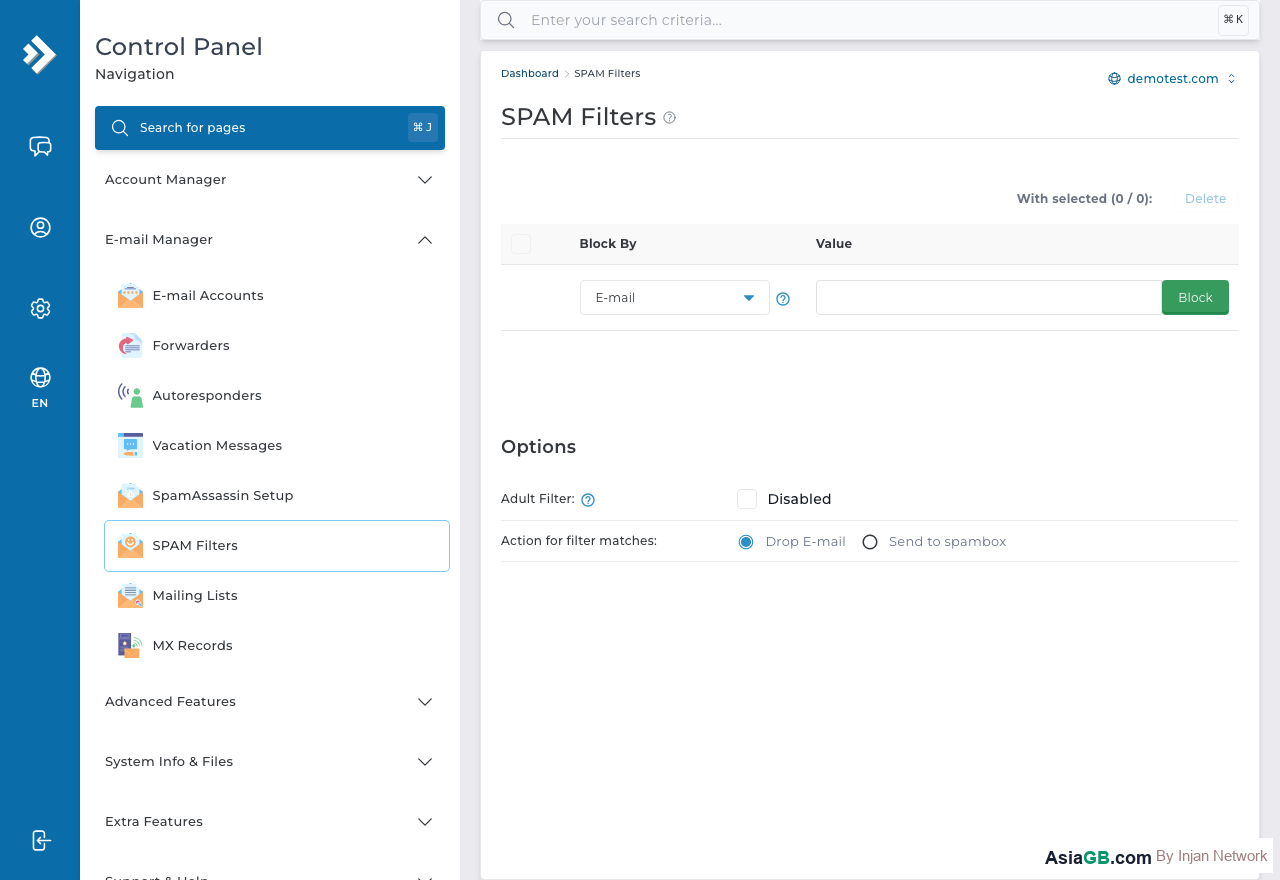
- You will see two sections: Block List (addresses/domains to always block) and Allow List (addresses/domains to always allow).
Creating Filter Rules by Sender (From Address)
The simplest and most common filter type is blocking a specific sender:
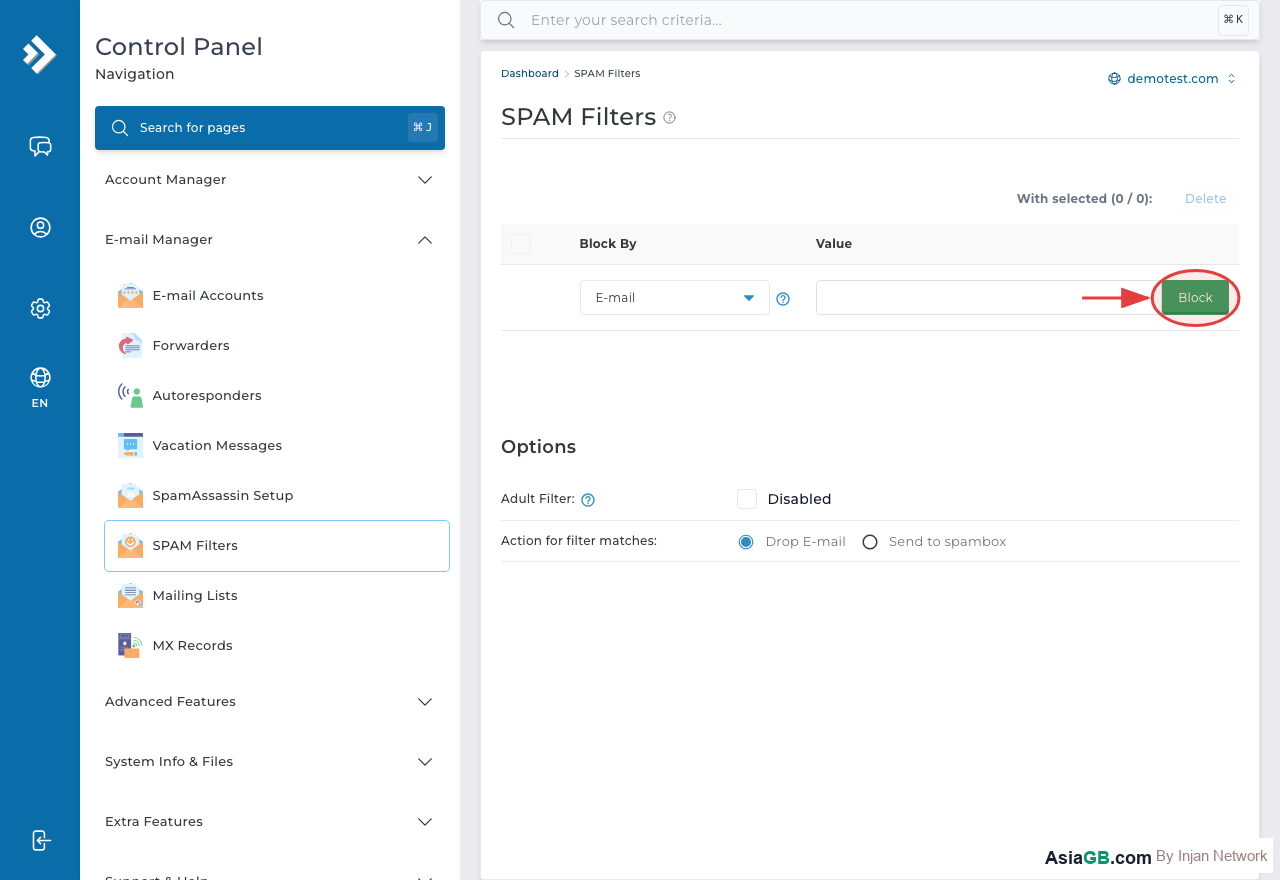
- In the Block List section, click Add Rule or Add.
- Set the Field to From (the sender's email address).
- Enter the address you want to block, for example:
[email protected]. - To block an entire domain, enter:
@spambadomain.com. - Set the action (see below) and save.
Creating Filter Rules by Subject Line
If you keep receiving spam with a particular subject phrase (such as "Win a free prize" or "Urgent loan offer"), create a subject-based filter:
- Add a new rule and set the Field to Subject.
- Enter the keyword or phrase to match, for example:
free prize. - Choose whether the match should be Contains (partial match) or Equals (exact match).
- Save the rule.
Creating Filter Rules by Body Content
Body-based filters scan the actual content of the email message:
- Add a new rule and set the Field to Body.
- Enter the phrase to search for inside the email body, for example:
click here to unsubscribe from all. - Save the rule.
Be careful with body filters — overly broad keywords can accidentally block legitimate emails. Test new rules carefully before relying on them.
Setting Actions: Delete, Move to Folder, Mark as Spam
For each filter rule, you can choose what happens when a match is found:
- Delete: The message is permanently discarded. No copy is kept anywhere on the server.
- Move to Folder: The message is moved to a spam or junk folder where you can review it later without cluttering your inbox.
- Mark as Spam: The message is tagged or flagged as spam, which may trigger further processing by your email client's own junk filters.
For most cases, Move to Folder is the safest option — it keeps messages out of your inbox but allows you to recover any false positives.
Block List vs Allow List
The Block List contains senders or domains whose messages should always be treated as spam. The Allow List (sometimes called Safe Senders or Whitelist) contains trusted addresses that should never be filtered, even if SpamAssassin or other rules would otherwise flag them. Always add important contacts — such as your bank, government services, or key suppliers — to the Allow List to prevent their emails from being accidentally blocked.
Tuning Spam Score and Thresholds to Reduce False Positives
One of the most common problems with spam filtering is false positives — legitimate emails that are incorrectly flagged as spam. Proper threshold tuning significantly reduces this issue without letting actual spam through.
Understanding SpamAssassin Score Ranges
SpamAssassin assigns a numeric score to every message. The higher the score, the more likely the message is spam:
- Score 0–4: Normal email — should not be filtered
- Score 5–7: Suspicious — worth moving to a junk folder for review
- Score 8–10: Likely spam — move to folder or add spam header
- Score 11+: Almost certainly spam — safe to auto-delete once you have verified your thresholds
Recommended Starting Configuration
When you first enable SpamAssassin, use conservative thresholds to avoid losing any legitimate email:
- Set the Tag threshold to 5 — this adds an
X-Spam-Flag: YESheader but does not move or delete anything. - Set the Move to Folder threshold to 8 — messages scoring 8 or above go to your spam folder for review.
- Avoid Auto-Delete until you have spent at least two weeks reviewing your spam folder and confirming no legitimate emails are being caught.
- Once confident, you may lower the Move threshold to 6 or enable auto-delete for scores above 12.
Reducing False Positives with the Allow List
If certain senders are regularly caught by SpamAssassin despite being legitimate, add them to your Allow List:
- Payment processors and e-commerce order confirmation systems
- Newsletter services you have subscribed to
- Banking or financial institution alert emails
- Government agency automated notifications
- Any developer tools sending automated status alerts (e.g., server monitoring, CI/CD pipelines)
Adding a domain to the Allow List means all messages from that domain will bypass spam scoring entirely. Use this sparingly for truly trusted senders — adding too many domains defeats the purpose of spam filtering.
Reviewing Spam Logs and Quarantine to Recover Blocked Email
Even with a well-tuned configuration, occasionally a legitimate email may end up in your spam folder. Regular review of your spam logs ensures nothing important is permanently lost.
Checking the Spam Folder in Webmail
If your filter action is set to Move to Folder, the easiest way to check for false positives is through Webmail:
- Log in to Webmail at
https://yourdomain.com/webmailormail.yourdomain.com. - Open the Spam or Junk folder in the left sidebar.
- Scan through subject lines and senders for any legitimate-looking messages.
- If you find a real email, select it and click Not Spam or Move to Inbox.
- For Roundcube users: right-click the message and choose Mark as Not Junk.
Viewing Mail Logs in DirectAdmin
If you have administrator access to DirectAdmin, you can inspect the raw mail logs to trace why a specific message was filtered:
- Navigate to System Info & Files → View Logs in DirectAdmin.
- Open exim_mainlog or maillog.
- Search for the sender's email address or partial subject line.
- Look for filter actions such as
spam score exceededorrule matched: [rule name]to identify which filter caught the message.
Adjusting Rules After Log Review
After reviewing logs and spam folders, adjust any rules that are causing false positives:
- Make keywords more specific: Instead of blocking the word
free(which appears in many legitimate emails), use a phrase likefree money no risk guaranteed. - Change match type: Switch from
ContainstoIs Exactlyto avoid partial-word false matches. - Move from Delete to Move: If a rule is deleting too aggressively, change its action to Move to Folder so you can review matches manually.
- Add sender to Allow List: If a specific address keeps getting caught, add it to your Allow List rather than removing the rule entirely.
How Often to Review Spam Settings
Spam patterns change over time. Spammers constantly adapt their techniques to bypass filters. Review your spam folder and filter rules at least once a month, and update your block list whenever you notice a new wave of spam from a particular domain or using a specific phrase. Keeping your filter rules up to date ensures ongoing protection as spam evolves.
Best Results: Use SPAM Filters alongside SpamAssassin for the strongest protection. Let SpamAssassin handle unknown spam intelligently while you use SPAM Filters to manually block recurring senders or topics that SpamAssassin may miss. Review your spam folder weekly when first setting up filters to ensure no legitimate emails are being caught.
Affordable Thai Hosting with Email Protection
AsiaGB hosting includes SpamAssassin and SPAM Filters — protect your inbox with professional email hosting at affordable prices.
View Hosting Plans