
Understanding how much of your hosting resources you are using is essential for keeping your website running smoothly and avoiding unexpected overages. DirectAdmin's User Statistics section gives you a clear, account-level view of your bandwidth consumption, email account usage, disk space, database counts, and more — all measured against the quotas assigned to your hosting plan. This guide explains how to access these stats and what each figure means.
What Is User Statistics?
User Statistics in DirectAdmin is a dedicated panel that shows your personal hosting account's resource consumption relative to the limits set by your hosting plan. Unlike the System Information page (which shows server-wide data), User Statistics shows only your account's usage — how much disk you have used, how much bandwidth you have consumed this month, how many email accounts you have created, and so on.
Monitoring these statistics regularly helps you catch resource issues early, before they cause site downtime or prevent new emails from being delivered.
How to Access User Statistics
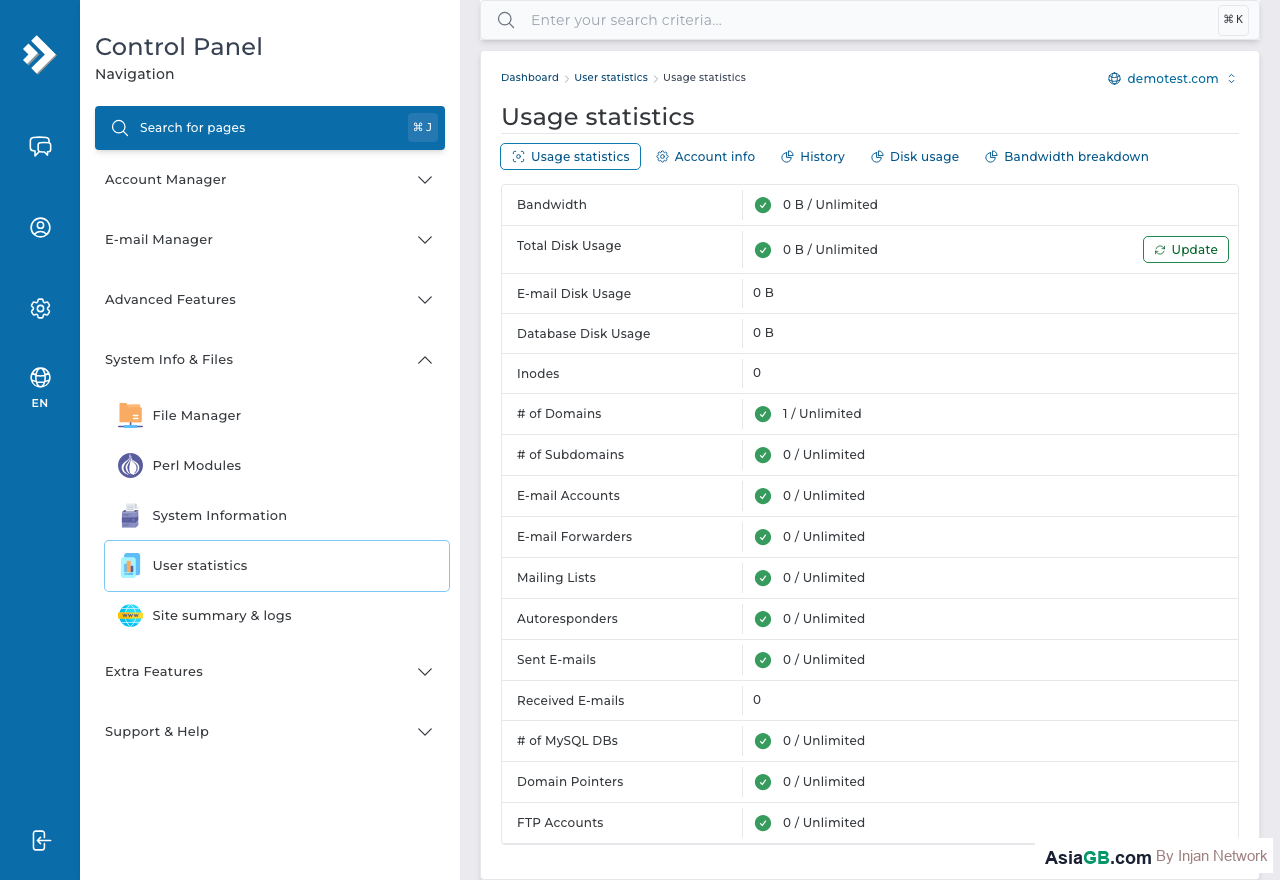
To view your User Statistics, log in to DirectAdmin and look for the Your Account or System Info & Files section. Click on User Statistics (or Account Statistics depending on your DirectAdmin version). The statistics page will display your current resource usage instantly.
Data Shown in User Statistics
The User Statistics page breaks down your hosting account's consumption across multiple resource categories:
Bandwidth Used / Remaining
Shows how much data has been transferred to and from your website during the current billing month, and how much remains before you hit your plan's bandwidth limit. Bandwidth is consumed every time a visitor loads a page, downloads a file, or your server sends an email. High-traffic websites with large images or video files consume bandwidth faster.
Disk Usage
Displays the total disk space your account is currently using, broken down into categories such as website files, email storage, databases, and backups. Compare this against your plan's disk quota to see how much space you have left. When disk usage is near 100%, you may be unable to upload new files or receive new emails.
Email Accounts
Shows how many email accounts you have created out of your plan's allowed maximum. Each email account also counts toward your overall disk quota because stored messages take up space.
MySQL Databases
Displays the number of MySQL databases you have created versus your plan's database limit. Most websites (especially those using WordPress, Joomla, or any CMS) require at least one database per installation.
Domains and Subdomains
Shows how many addon domains and subdomains you have configured, measured against your account's limits for each.
FTP Accounts
Displays the number of FTP accounts created on your hosting account.
Interpreting Quota Usage
The statistics page typically shows usage as both a number (e.g., 4.2 GB used) and a percentage bar (e.g., 42% of 10 GB). Green bars indicate healthy usage levels, yellow bars indicate usage is getting high, and red bars warn that you are approaching or have reached your quota limit.
Pay particular attention to:
- Disk usage above 80% — time to clean up old files, delete spam emails, or consider upgrading your plan.
- Bandwidth above 80% — consider compressing images, enabling caching, or upgrading to a higher bandwidth plan before the month ends.
- Email at limit — you will not be able to create new email accounts until you delete unused ones or upgrade.
What Happens When You Exceed Your Quota
When a resource reaches 100% of its quota, DirectAdmin will typically prevent you from using more of that resource. For disk space, new file uploads and email deliveries may fail. For bandwidth, depending on your hosting provider's policy, your site may be suspended, throttled, or you may be charged overage fees until the next billing cycle.
How to Increase Your Quota
If you consistently find yourself running close to your resource limits, you have two options: optimize your usage (compress images, delete old backups, remove unused email) or upgrade to a higher hosting plan. To request a quota increase or upgrade your plan, contact your hosting provider's support team or upgrade directly through your billing panel at billing.in.th.
Tip: Check your bandwidth usage at least once a month, especially if your site receives seasonal traffic spikes (such as during sales or campaigns). Running out of bandwidth mid-month can result in your site going offline until the month resets or you purchase additional bandwidth.
Understanding Inode Quota vs Disk Quota
Two quota types often confuse new hosting users: disk quota and inode quota. They measure different things and can both independently prevent you from using your account normally if either is exhausted.
Disk Quota is the maximum total storage size your account may use, measured in gigabytes. It includes website files (HTML, PHP, images, CSS, JavaScript), email storage (all messages stored on the server), MySQL database files, and any backup archives. When disk quota is full, new file uploads fail, databases cannot grow, and incoming email is rejected.
Inode Quota limits the total number of files and directories in your account, regardless of their size. Every single file — even a 1-byte text file — consumes one inode. A hosting account hosting a large WordPress site with many plugins, thousands of stored emails, accumulated PHP session files, and CMS cache files can hit its inode limit while still having gigabytes of disk space available. When the inode limit is reached, no new files can be created, which prevents WordPress from saving options, breaks email delivery, and stops caching systems from writing cache files.
Common causes of inode exhaustion:
- Accumulated email — Each email message is stored as an individual file. An inbox with 50,000 old messages consumes 50,000 inodes.
- WordPress plugin and theme files — Large plugins can contain thousands of individual PHP, CSS, and JavaScript files. Multiplied across several plugins, the file count adds up quickly.
- PHP session files — PHP writes a session file for every active visitor session. If sessions are not being cleaned up automatically, they accumulate.
- CMS cache directories — Caching plugins like W3 Total Cache or WP Super Cache can generate thousands of small cache files over time.
To reduce inode usage: empty your Trash and Junk email folders, delete old backups, clear WordPress cache through your caching plugin, and use a cron job or hosting-level cleanup to purge orphaned PHP session files.
Setting Bandwidth Alerts and Managing Usage Proactively
Preventing bandwidth overages requires regular monitoring and, ideally, action before the limit is reached. Here are the most effective strategies:
- Check User Statistics weekly — Log in to DirectAdmin and review your bandwidth bar. If you have used more than 70% of your monthly allowance before the 20th of the month, take action immediately.
- Enable a CDN — A free CDN such as Cloudflare intercepts requests from visitors and serves static files (images, CSS, JS) from its own edge servers instead of your hosting server. This can reduce your origin bandwidth consumption by 40–70% for most websites.
- Compress images — Large unoptimized images are the most common cause of excessive bandwidth use. Tools such as TinyPNG, Squoosh, or WordPress plugins like Smush can reduce image file sizes by 50% or more without visible quality loss.
- Enable browser caching — Add Cache-Control headers in your
.htaccessfile so that repeat visitors load static resources from their browser cache instead of re-downloading them from your server. - Block hotlinking — If other websites are linking directly to images on your server, their visitors consume your bandwidth. Add hotlink protection rules in
.htaccessor use the Hotlink Protection feature in DirectAdmin to block unauthorized image embedding.
If your site consistently approaches its bandwidth limit each month, upgrading to a higher-tier hosting plan is the most reliable long-term solution. Contact AsiaGB support or log in to billing.in.th to view and upgrade your current plan.
Unlimited Bandwidth Hosting at AsiaGB
AsiaGB hosting plans come with generous bandwidth allowances. Upgrade anytime from your billing panel without migrating your site.
View Hosting Plans