
A Web Application Firewall (WAF) is one of the most effective tools for protecting websites from automated attacks, exploitation attempts, and malicious traffic. Unlike a network firewall that blocks traffic based on IP addresses and ports, a WAF inspects the actual content of HTTP requests and blocks attacks at the application layer. DirectAdmin supports WAF functionality through ModSecurity, the industry-standard open-source WAF module for Apache.
What Is a Web Application Firewall?
A WAF sits between your website and incoming web traffic. It examines every HTTP request — including URLs, headers, form data, and cookies — and compares it against a set of security rules. If a request matches a known attack pattern, the WAF blocks it before it ever reaches your web application. The WAF operates transparently: legitimate visitors experience no change in behavior, while malicious requests are stopped in their tracks.
WAF vs Network Firewall
A network firewall (like iptables or CSF) works at the IP and port level — it can block entire IP ranges, close unused ports, and limit connection rates. A WAF works at the HTTP application layer, understanding the structure and content of web requests. They complement each other: a network firewall prevents unauthorized server connections, while a WAF prevents authorized connections from executing malicious payloads. Both are needed for complete server security.
What Threats Does a WAF Protect Against?
- SQL Injection (SQLi) — attackers embed SQL commands in form inputs or URLs to manipulate your database
- Cross-Site Scripting (XSS) — malicious scripts injected into web pages to steal session cookies or redirect users
- Cross-Site Request Forgery (CSRF) — tricks authenticated users into executing unintended actions on your site
- Path Traversal — attempts to access files outside the web root using
../sequences - Remote File Inclusion (RFI) — loading malicious scripts from external servers
- Command Injection — injecting OS commands through vulnerable input fields
- Bot and scanner traffic — automated vulnerability scanners probing for weaknesses
Enabling WAF in DirectAdmin (ModSecurity)
ModSecurity must be enabled at the server level by your hosting administrator. If your AsiaGB hosting plan includes WAF support, you can manage it through DirectAdmin:
- Log in to DirectAdmin and look for ModSecurity or Web Application Firewall under Advanced Features or Security.
- If enabled, you will see your ModSecurity status and audit log entries.
- Toggle ModSecurity On for your domain.
- Select a rule set — most configurations use the OWASP Core Rule Set (CRS).
- Choose your operating mode: Detection Mode (logs only) or Prevention Mode (blocks attacks).
- Click Save to apply.
OWASP Core Rule Set
The OWASP Core Rule Set (CRS) is the most widely deployed WAF rule set in the world, maintained by the Open Web Application Security Project. It provides protection against the OWASP Top 10 web application vulnerabilities and is updated regularly to address new attack patterns. When you enable ModSecurity with the OWASP CRS, you get comprehensive coverage against the most common and dangerous web attacks with minimal configuration required.
Viewing WAF Logs and Block Events
ModSecurity logs every detected attack attempt in the ModSecurity audit log. In DirectAdmin (where enabled), you can view a summary of blocked requests including the source IP, the rule that triggered, and the request details. Reviewing these logs helps you understand the attack traffic your site receives and verify that legitimate traffic is not being blocked. Common information in a log entry includes:
- Timestamp of the event
- Source IP address of the attacker
- Rule ID that matched
- The URI and parameter that triggered the rule
- Whether the request was blocked or allowed
Handling False Positives
A false positive occurs when the WAF blocks a legitimate request because it matches a security rule. This can happen with complex form submissions, special characters in content, or certain API payloads. When you encounter a false positive:
- Check the ModSecurity audit log to identify which rule (Rule ID) triggered the block.
- Evaluate whether the rule is too aggressive for your application.
- Work with your hosting provider to whitelist the specific rule for your domain or create an exception for the specific URL and parameter.
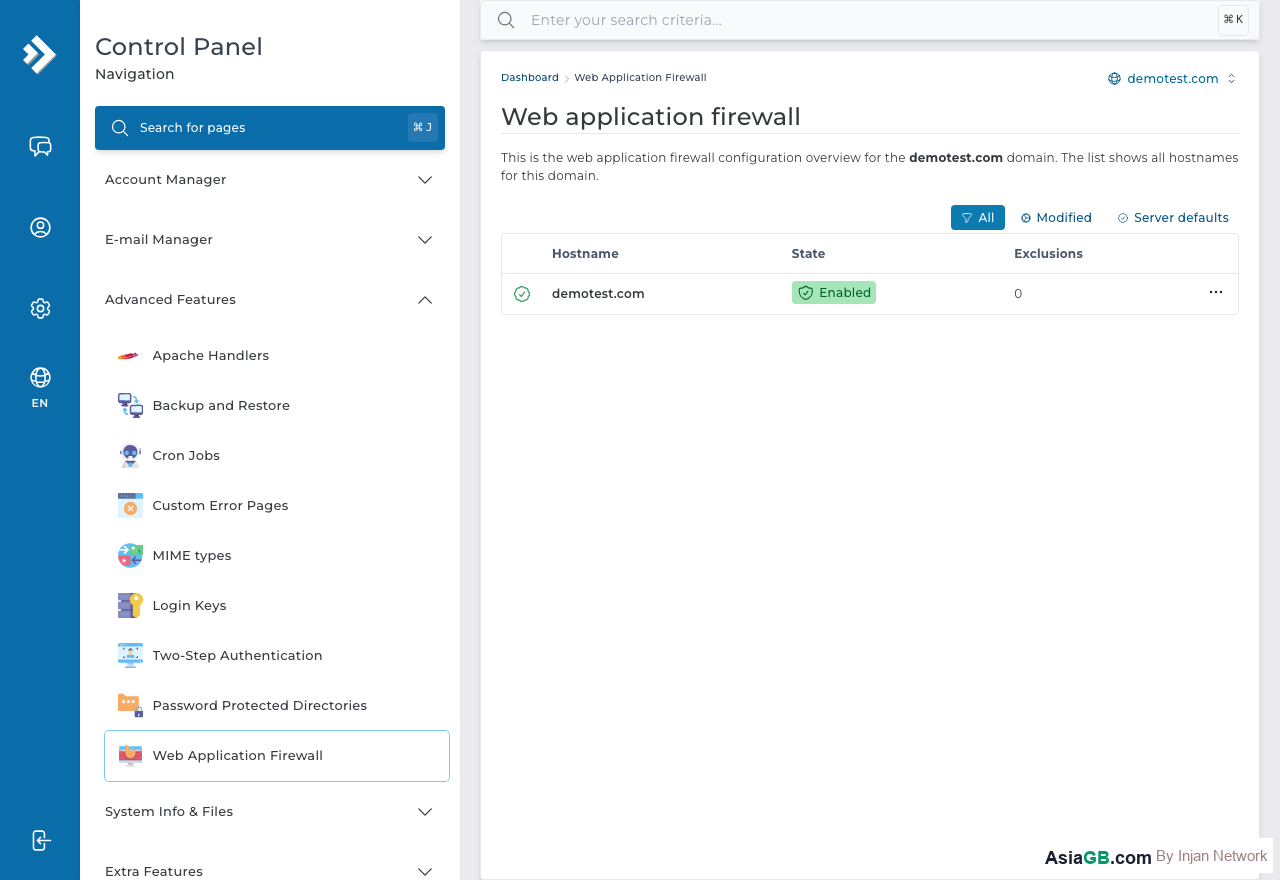
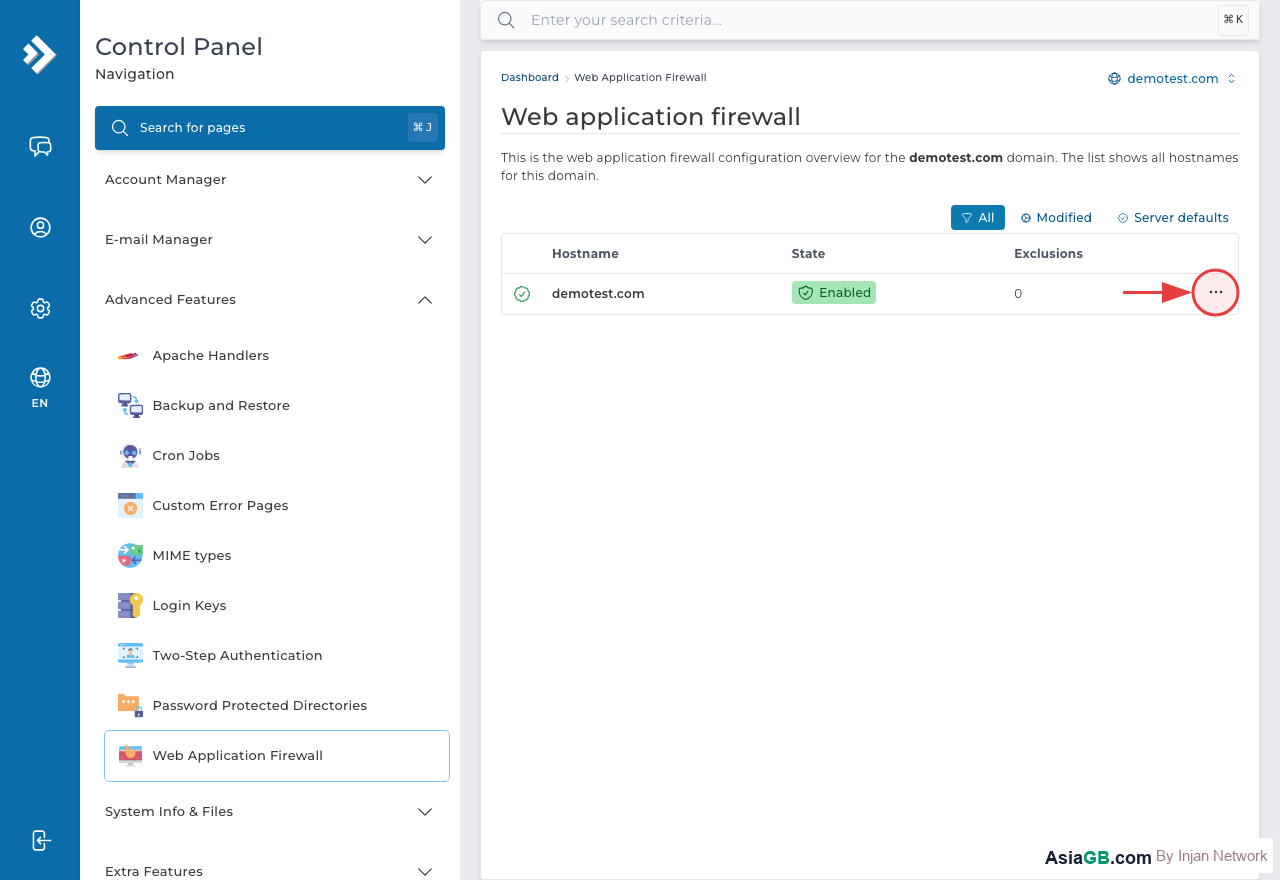
Avoid disabling entire rule sets to fix a single false positive — targeted exceptions are always preferable.
Whitelisting IPs and URLs in ModSecurity
When the WAF blocks legitimate traffic, the goal is to create the smallest possible exception that fixes the false positive without reducing security for everything else. There are two main approaches: IP whitelisting and rule-specific exceptions for particular URLs.
IP Address Whitelisting
If your office IP, developer workstation, or monitoring service is being blocked, the cleanest fix is to whitelist that IP address. ModSecurity supports IP-based exceptions using the SecRule directive:
- Single IP:
SecRule REMOTE_ADDR "@ipMatch 203.0.113.10" "id:1001,phase:1,allow,nolog" - IP range:
SecRule REMOTE_ADDR "@ipMatch 203.0.113.0/24" "id:1002,phase:1,allow,nolog"
On shared hosting where you cannot edit server configuration files directly, contact your hosting provider's support team to request an IP exception. On AsiaGB hosting, this can be handled through the support ticket system.
URL and Rule-Specific Exceptions
For false positives caused by specific functionality — such as an HTML editor in your admin panel, a file upload endpoint, or an API that accepts complex JSON — create targeted exceptions that apply only to the affected URL and rule. This approach protects everything else while fixing the specific problem. For example, you might exempt Rule 941100 (XSS detection) only for the URL /admin/editor.php where users legitimately submit HTML content through a rich text editor.
Signs That a Block Is a False Positive (Not a Real Attack)
- The error started immediately after deploying a new feature that uses a rich text editor or HTML input
- Only logged-in users are affected — anonymous visitors have no issues
- The WAF log shows XSS rules triggering, but the content is HTML that an admin typed in a CMS editor
- The blocked URL is an internal admin endpoint, not a public-facing page
- The blocked request comes from your own server's monitoring or health-check system
Reading WAF Logs to Diagnose Problems
When your website starts behaving unexpectedly after enabling the WAF — users see 403 errors, forms stop submitting, or certain features break — the ModSecurity audit log is the first place to look. It records every request that triggered a rule, giving you the exact information needed to diagnose whether WAF is the cause and which rule is responsible.
What Each Log Entry Contains
A ModSecurity audit log entry includes:
- Timestamp — the exact date and time of the event (compare against when users reported the problem)
- Client IP address — who sent the request (helps distinguish real users from automated scanners)
- Rule ID — the specific rule that matched (e.g., 941100 = XSS detection, 942100 = SQL Injection)
- Request URI and parameters — the URL and form data that triggered the rule
- Action taken — whether the request was blocked or just logged
- Severity level — CRITICAL, ERROR, WARNING, or NOTICE
How to Access WAF Logs in DirectAdmin
- Log in to DirectAdmin and navigate to Advanced Features or Security.
- Look for ModSecurity, WAF, or Audit Log.
- Filter log entries by the time range when the problem occurred.
- Search for lines containing
Access deniedor specific Rule IDs. - Note the Rule ID and the URI for each blocked request you want to investigate.
- Decide whether each blocked request was a real attack (keep the rule) or a false positive (create an exception).
Log Analysis Decision Framework
For each blocked request in the log, ask: Was this request sent by a legitimate user performing a normal action on my site? If yes, it is a false positive — create a targeted exception for that rule and URL. If no, the WAF correctly blocked an attack attempt. The key principle is to never disable the WAF globally or remove entire rule sets to fix a single false positive. Always create the minimum exception needed to restore the specific functionality that broke.
WAF Modes: Detection vs Prevention
Detection Mode (also called passive or monitoring mode) logs all rule matches without blocking any requests. This mode is ideal for initial deployment — run it for a week on your production site to identify any false positives before switching to Prevention Mode.
Prevention Mode (active blocking) actively blocks requests that match security rules, returning a 403 Forbidden response to the attacker. This is the mode you want in production once you have confirmed there are no false positives affecting your legitimate users.
Test WAF on Staging First: Before enabling ModSecurity in Prevention Mode on your production site, always test it on a staging copy first. Some web applications — particularly older CMS platforms, e-commerce checkout flows, or complex form submissions — may trigger false positives that break functionality. Run Detection Mode on staging, review the logs thoroughly, whitelist any false positives, and only then enable Prevention Mode on production.
Hosting with Built-in WAF and ModSecurity
AsiaGB hosting plans include ModSecurity with the OWASP Core Rule Set to protect your websites from SQL Injection, XSS, and automated attack traffic.
View Hosting Plans