
Two-Step Authentication (2FA) adds a critical second layer of security to your DirectAdmin login. Even if someone obtains your password through a phishing attack, data breach, or brute-force attempt, they still cannot access your account without the time-sensitive verification code from your authenticator app. Setting up 2FA for DirectAdmin takes less than five minutes and dramatically reduces the risk of unauthorized access to your hosting account.
What Is Two-Step Authentication?
Traditional login uses something you know — your password. Two-step authentication adds a second factor: something you have — typically your smartphone. When 2FA is enabled, logging in requires both your password AND a 6-digit code that changes every 30 seconds. This time-based one-time password (TOTP) is generated by an app on your phone and is unique to your account. Without physical access to your phone, attackers cannot log in even with a correct password.
Why Enable 2FA for DirectAdmin?
Your DirectAdmin account controls everything on your hosting — all website files, databases, email accounts, and DNS records. A compromised hosting account can mean complete loss of your website, customer data theft, malware injection, and blacklisting by search engines. Enabling 2FA costs you 10 extra seconds at login but makes brute-force and credential-stuffing attacks essentially impossible.
Requirements
You need an authenticator app installed on your smartphone before starting. The most popular options are:
- Google Authenticator — free, available on iOS and Android, easy to use
- Authy — free, supports multi-device sync and cloud backup (recommended if you use multiple devices)
- Microsoft Authenticator — free, good choice if you already use Microsoft services
How to Enable 2FA in DirectAdmin (Step by Step)
- Log in to DirectAdmin with your current username and password.
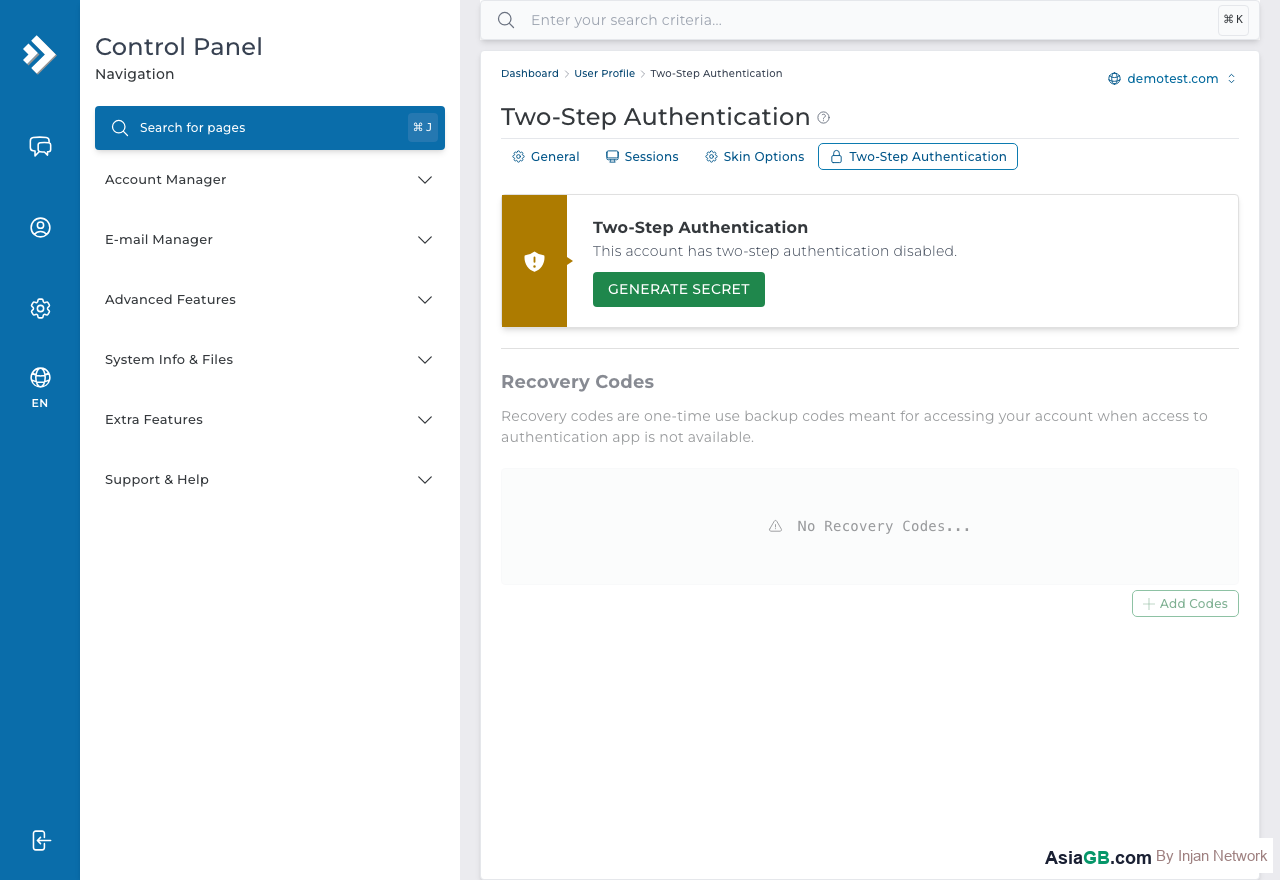
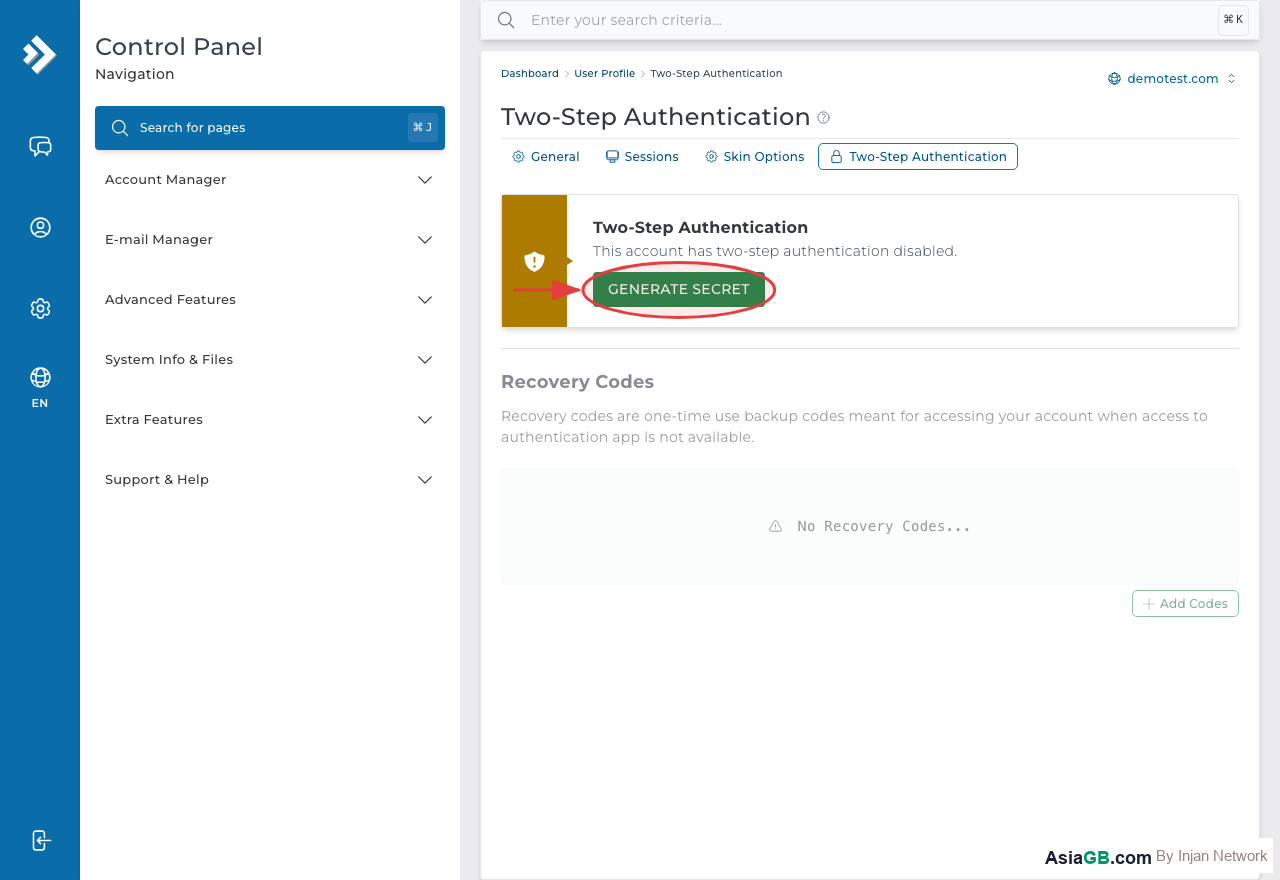
- Go to Your Account section and click Two-Factor Authentication.
- Click Enable Two-Factor Authentication.
- DirectAdmin will display a QR code on screen.
- Open your authenticator app on your phone and tap Add Account or the + button.
- Choose Scan QR code and point your camera at the QR code on the DirectAdmin screen.
- The app will add your DirectAdmin account and immediately start showing a 6-digit code that refreshes every 30 seconds.
- Enter the current 6-digit code from your app into the Verification Code field in DirectAdmin.
- Click Confirm. DirectAdmin will verify the code and activate 2FA.
- Store your backup codes in a safe place — these are used if you lose access to your phone.
Logging In with 2FA Active
Once 2FA is enabled, every DirectAdmin login will have an additional step. After entering your username and password correctly, you will be prompted for your verification code. Open your authenticator app, find your DirectAdmin entry, and type the current 6-digit code. The code is valid for 30 seconds — if it expires, just wait for the next one to appear. Click Login to complete authentication.
Disabling 2FA
If you need to disable 2FA — for example, when switching to a new phone — log in with your password and verification code, go to Two-Factor Authentication settings, and click Disable. You will need to confirm this action. You can then re-enable and re-scan the QR code from your new device.
Understanding TOTP: How the Time-Based Code Works
DirectAdmin's Two-Factor Authentication uses the TOTP (Time-based One-Time Password) standard defined in RFC 6238. Understanding how it works helps you use it correctly and troubleshoot problems when they arise.
When you scan the QR code with your authenticator app, you are storing a secret key shared between DirectAdmin and your phone. Every 30 seconds, both your phone and DirectAdmin's server independently calculate the same 6-digit code using the shared secret and the current Unix timestamp. When you enter the code at login, DirectAdmin runs the same calculation and checks that your input matches. If the codes match within the valid time window, access is granted.
- TOTP — code changes every 30 seconds, based on the current time. Requires your phone clock to be accurate (within a minute or two). This is what DirectAdmin uses.
- HOTP — code changes each time it is used, based on a counter rather than time. Less common in web hosting contexts.
- Time sync matters — if your phone's clock is more than 60 seconds off from the server's time, your OTP codes will not match. Enable automatic time sync on your device to avoid this issue.
Choosing and Setting Up Your Authenticator App
All TOTP-compatible authenticator apps work with DirectAdmin. Here is a comparison of the most popular options to help you choose the right one for your situation:
- Google Authenticator — simple and fast, available on iOS and Android. Does not require an account. Codes are stored locally on your device. Downside: if you lose your phone without a backup, you lose all your 2FA codes.
- Authy — supports encrypted cloud backup and multi-device sync. If you get a new phone, you can restore all your 2FA accounts. Recommended if you want resilience against phone loss.
- Microsoft Authenticator — good choice if you already use Microsoft accounts. Supports cloud backup. Works with any TOTP-compatible service including DirectAdmin.
- 1Password — built-in TOTP support in the password manager. Convenient for users who already use 1Password for credential management.
Any of these apps will work. Scan the QR code from DirectAdmin using your chosen app's "Add Account" or "+" button, then verify the first code to complete the setup.
Saving Backup Recovery Codes: What to Do and What to Avoid
When you first enable 2FA in DirectAdmin, the system provides a set of backup recovery codes. These single-use codes allow you to log in when you cannot access your authenticator app — for example, when your phone is lost, stolen, broken, or wiped. Treating these codes as critical security assets is essential.
How to Store Backup Codes Safely
- Print and store offline — keep a printed copy in a locked drawer or safe. Physical storage is immune to digital attacks.
- Use an encrypted password manager — tools like Bitwarden or 1Password store backup codes with strong encryption. Ensure the password manager itself has 2FA enabled.
- Store in a secure email with 2FA — emailing codes to yourself in a 2FA-protected inbox adds a layer of security, though it is not as strong as offline storage.
- Never store in plain-text files — unencrypted text files on your computer are vulnerable to malware and unauthorized access.
- Never share backup codes — treat them like a master password. They grant full access to your DirectAdmin account with no additional verification.
Each backup code can only be used once. After you use one to log in, it is immediately invalidated. Once logged in with a backup code, your first action should be to re-scan a new QR code on your replacement phone and re-enable 2FA so your account is protected again.
Disabling and Resetting 2FA: User and Admin Options
There are scenarios where you need to disable or reset 2FA: switching to a new phone, recovering from a lost device, or managing 2FA for users under your account. DirectAdmin provides options at both the user level and the admin level.
Disabling 2FA as the Account Owner
If you have access to your current OTP codes, disabling 2FA is straightforward: log in with your password and OTP, navigate to Two-Factor Authentication settings, and click Disable. You will be asked to confirm with your current OTP. After disabling, you can immediately set up 2FA again on your new device by scanning a fresh QR code.
Using a Backup Code to Disable 2FA
If your phone is unavailable but you have a backup code, use it at the OTP prompt during login. Once logged in, go to Two-Factor Authentication settings and disable 2FA so you can re-enable it with a new device. Remember that each backup code is single-use — once used, it cannot be used again.
Admin Override for Sub-accounts
If a user or reseller under your DirectAdmin admin account has lost access to their authenticator and has no backup codes, you can reset their 2FA from the admin panel. Navigate to Admin Level > List Users, select the affected user, and choose Reset Two-Factor Authentication. This immediately disables their 2FA and allows them to log in with just their password on the next attempt. They should then immediately re-enable 2FA on a new device.
Before performing an admin 2FA reset, always verify the requesting user's identity through an independent channel — for example, through a support ticket from their registered email address. Social engineering attacks often involve convincing an admin to disable 2FA on a target account.
What to Do If You Lose Your Authenticator
If you lose your phone or uninstall the authenticator app, you will need your backup codes to log in. If you did not save the backup codes, contact your hosting provider (AsiaGB support) to disable 2FA on your account after verifying your identity. This is why saving backup codes when you first enable 2FA is essential.
Enable 2FA First: The very first action you should take after gaining access to a new DirectAdmin account is enabling Two-Factor Authentication. Your hosting account is a high-value target — it controls your entire web presence. Do not wait until after you have uploaded files and data. Enable 2FA immediately, before anything else.
Secure Hosting with High-Security Control Panel
AsiaGB hosting plans include DirectAdmin with 2FA, login keys, SSH key authentication, and multiple layers of security for your account.
View Hosting Plans