
When your site has a problem or you have a hosting question, submitting a Support Ticket is the organised, traceable way to reach the team. Unlike a phone call, a ticket keeps a full record of messages, screenshots, and the fix history. This guide explains how to submit a ticket through DirectAdmin and how to write one that gets resolved as fast as possible.
What a Support Ticket Is and When to Use It
A Support Ticket is a help request recorded as an item in the system. The support team receives it, replies, and updates its status within the same ticket until the issue is resolved. Use a ticket when: your site is down or unreachable, email is not sending or receiving, an SSL certificate is failing, you need the team to check the server side, or you have questions about plans and billing — tickets are AsiaGB's primary channel because they capture full details and route straight to the technical team.
How to Submit a Ticket Through DirectAdmin
- Log in to DirectAdmin
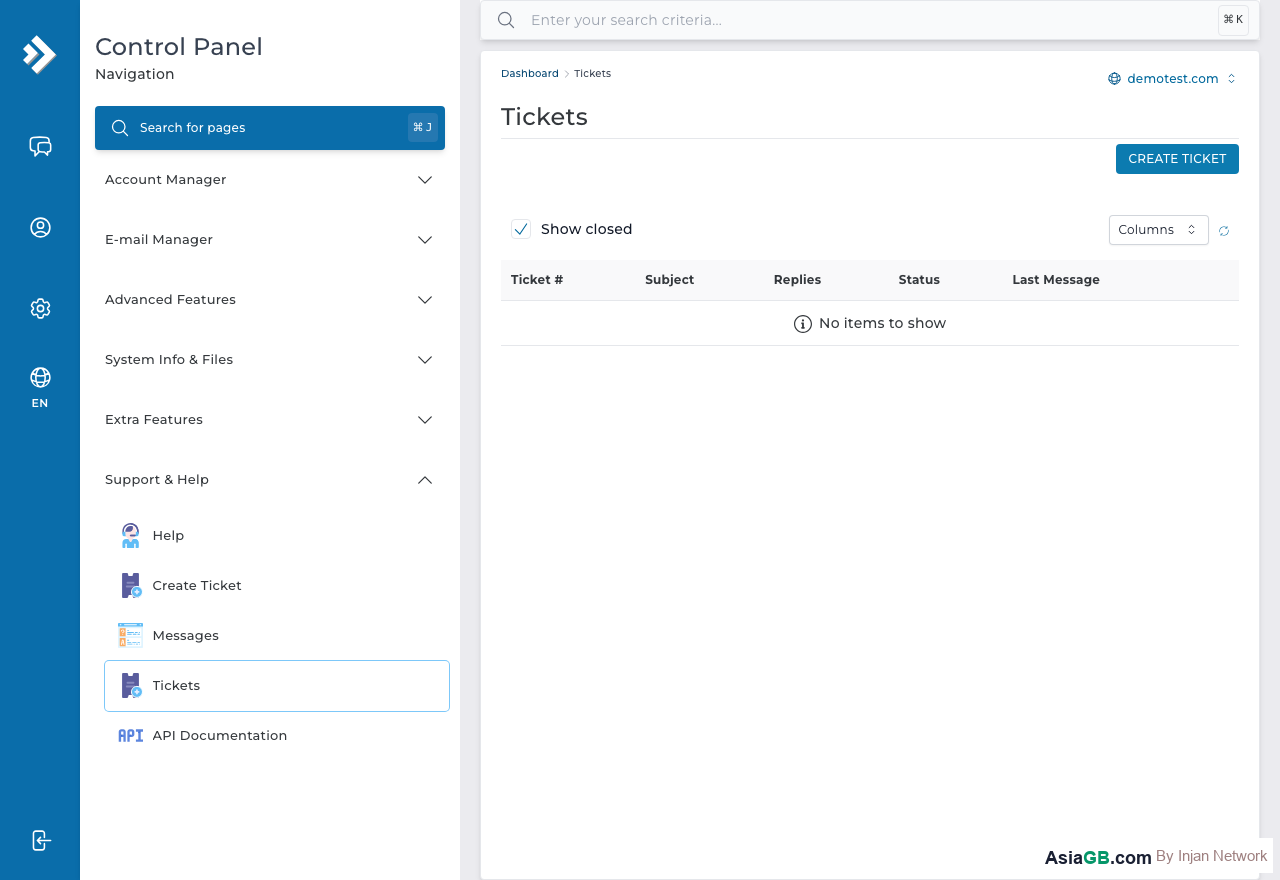
- Go to the Support & Help section
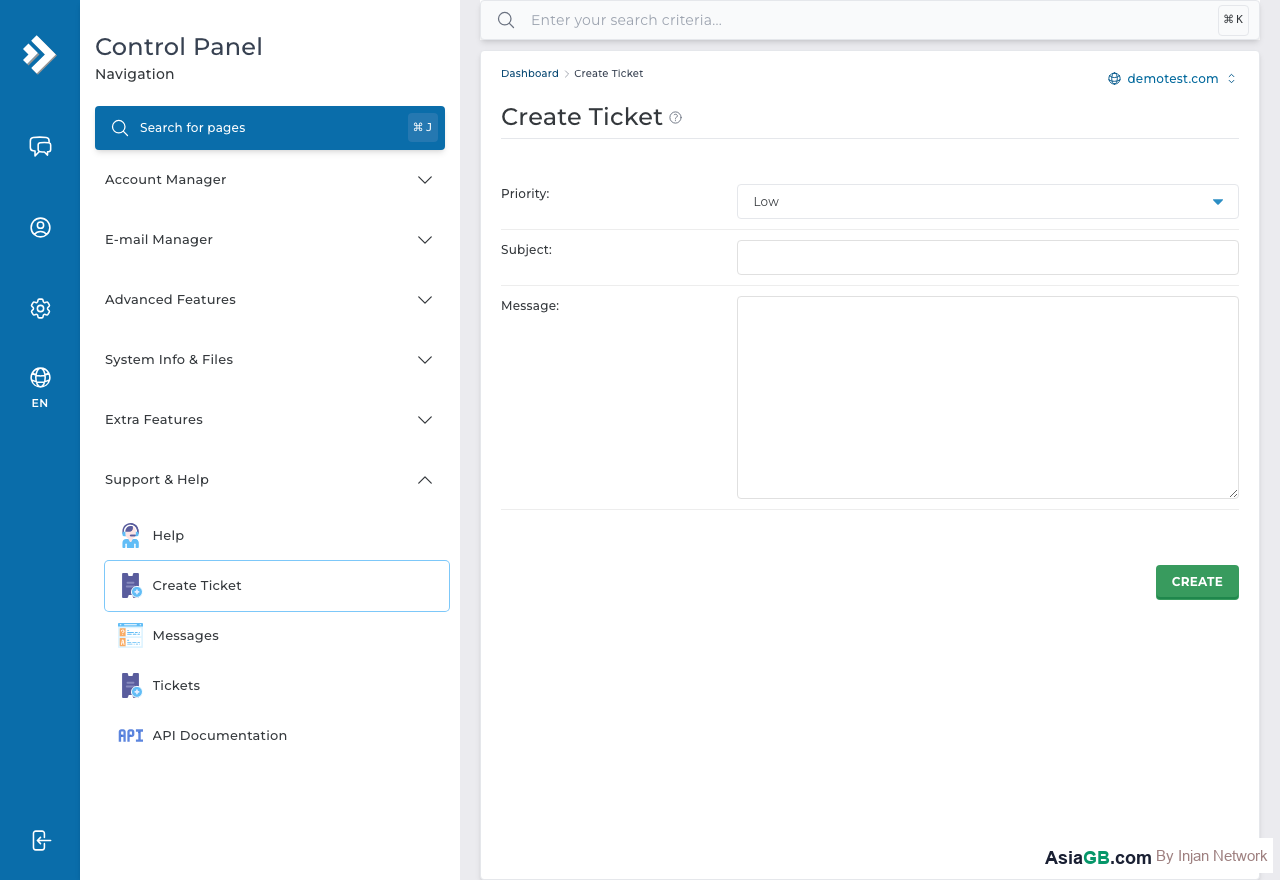
- Click Support Tickets, then choose Create New Ticket
- Select the Department matching your issue (technical / billing / general)
- Enter a short but clear Subject and a detailed Message
- Attach screenshots or relevant log files
- Click Submit
Choosing the Right Department
Picking the correct department helps your ticket reach the person who can fix it faster. For a site outage, email, or SSL issue, choose the technical department. For invoices, renewals, or plan upgrades, choose the billing/accounts department. Choosing the wrong department may require the ticket to be transferred, which slows things down.
Writing a Ticket That Gets Resolved Fast
The quality of a ticket directly affects how quickly it is resolved. A ticket that only says "the site doesn't work" forces the team to ask follow-up questions. Include all of this from the start:
- The domain name affected (most important)
- The symptoms — when it started and what you were doing at the time
- The error message or a screenshot — copy the full text, not just "there's an error"
- What you have already tried — so the team doesn't suggest the same fix again
Good to know: AsiaGB communicates more easily in writing than by phone. Tickets, Line, and email are therefore the primary channels — and the ones that receive the fastest, most complete replies.
Tracking Status and Replies
After submitting, return to the Support Tickets page to check the status anytime — Open means awaiting the team, Answered means the team has replied and is awaiting your confirmation, and Closed means the matter is resolved. The system emails you when there is a reply, so keep your contact email correct and check it regularly.
Channels Beyond the DirectAdmin Ticket
Besides submitting through DirectAdmin, you can submit a ticket directly at billing.in.th/submitticket.php using the same account, with [email protected] as a backup channel. The ticket system is still better than plain email, because the issue is queued and its status can be tracked.
Frequently Asked Questions
How long does a ticket take to answer?
It depends on the complexity of the issue and how complete your information is. Tickets that clearly state the domain and symptoms are usually resolved faster.
Do I need to phone to follow up after submitting a ticket?
No. The ticket system tracks status itself, and written channels are already AsiaGB's primary way of replying.
Can I attach large files to a ticket?
You can attach screenshots and ordinary-sized log files. For very large files, upload them elsewhere and include the link in the ticket.
Need Help Right Now?
The AsiaGB support team is ready to help with all Hosting issues. Submit a ticket today.
Submit a Ticket