
Messages in DirectAdmin is the inbox the server administrator uses to announce important matters to every hosting user. Many people overlook this menu, but it is actually the channel through which you learn in advance that the server will undergo maintenance, updates, or anything that may affect your site. This guide explains how Messages works and why you should check it regularly.
What Messages Is, and How It Differs from Regular Email
Messages is a one-way communication system from the server administrator to hosting account owners. Unlike regular email, these messages are stored directly in the control panel, so they don't get lost in a spam folder or accidentally deleted. Content sent through Messages usually concerns matters that affect everyone on the same server, not the private affairs of a single account.
How to View Messages
- Log in to DirectAdmin
- Go to the Support & Help section
- Click Messages
- All messages are listed with their date and read/unread status
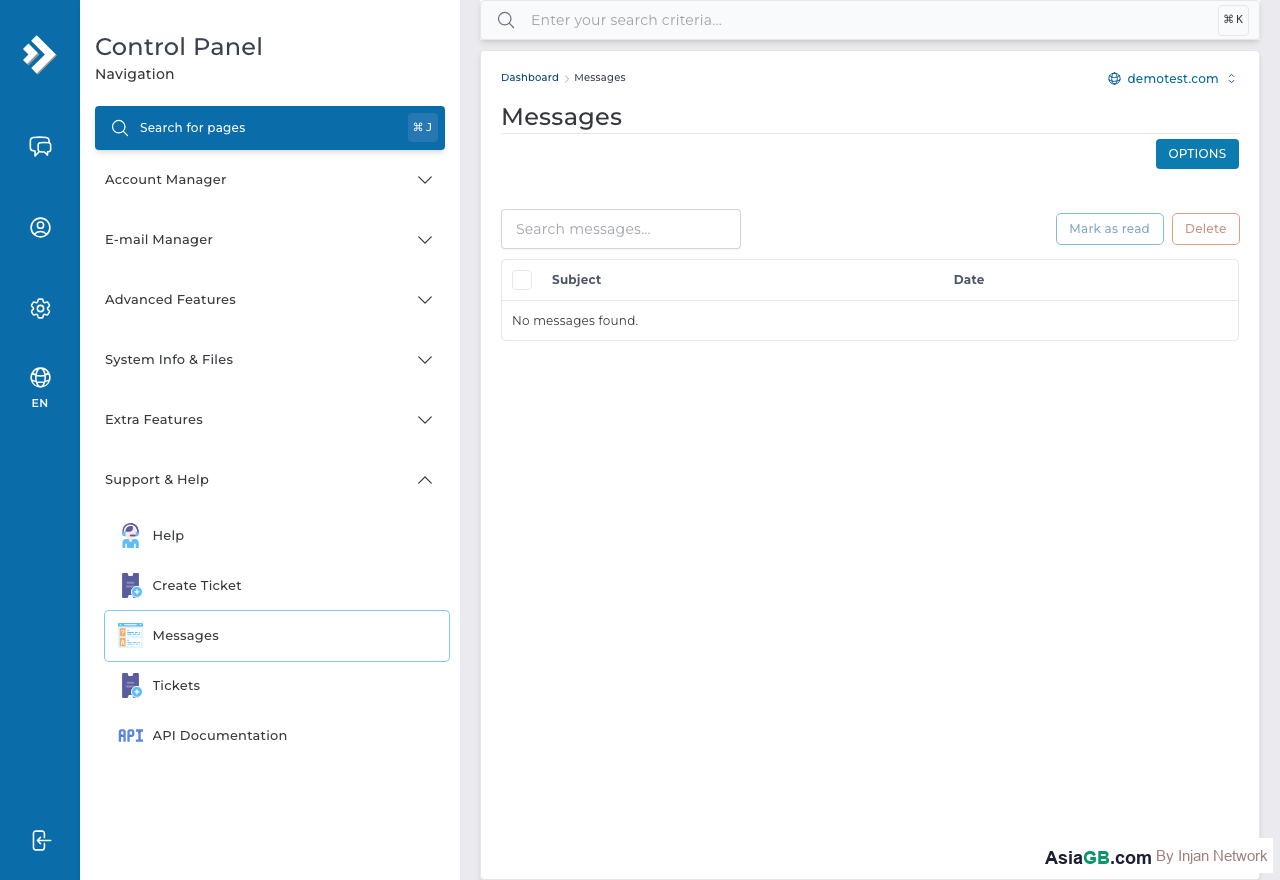
If there is a new unread message, DirectAdmin usually shows a notification count on the menu, so you notice it immediately after logging in.
Message Types and What They Mean
- Maintenance Notice — scheduled server maintenance, stating the date and time of any brief downtime
- Security Update — security patches being installed, which sometimes require restarting services
- Service Upgrade — software upgrades such as PHP or MySQL that may affect site compatibility
- Usage Warning — alerts when your bandwidth or inode usage is near the limit
Why You Should Read Messages Regularly
Service Upgrade messages are especially important — if the server is upgrading PHP to a new version, sites running older code may face compatibility issues. Reading Messages ahead of time gives you a window to test and adjust your site before the change takes effect. Usage Warnings likewise let you manage space or upgrade your plan in time, before the site stops working due to exceeding quota.
Tip: Check Messages every time you log in to DirectAdmin, especially before important dates or campaign launches, to make sure no maintenance is scheduled during a period when your site must be fully available.
Messages and Email Notifications
Important messages from the admin are usually also sent to the email address registered on your account, alongside being shown in Messages. So set your contact email in your AsiaGB account to one you actually use and check often — and if you use a @yourdomain mailbox hosted on the same server, keep a backup email too, in case a server problem prevents mail delivery.
System Messages in DirectAdmin: What They Are
System Messages are messages that an administrator manually composes and sends to users through DirectAdmin's built-in messaging system. Unlike automated alerts, System Messages carry the admin's own voice — explaining context, providing timelines, and giving users the information they need to prepare. There are several types you are likely to see.
Admin Broadcast
An Admin Broadcast is a message sent simultaneously to every user on the server, regardless of which reseller they belong to. Broadcasts are used for announcements that affect everyone: data center migrations, network maintenance windows, hardware upgrades, or major changes to server configuration. Because all users receive the message at the same time, broadcast messages are also a fair way to ensure no customer is left unaware of a significant change.
Maintenance Notices
Maintenance Notices are a subtype of admin message that specifically announce scheduled downtime or disruption. A well-written maintenance notice will include the start and end time (in a timezone your users understand), a brief explanation of what work is being done, whether any action is required from users, and a point of contact for urgent questions. Reading maintenance notices early gives you time to plan around potential service disruptions — for example, by scheduling database operations or content deployments for a different time window.
System Alerts
System Alerts are messages that report an ongoing issue. You might receive a system alert if the server is under unusually high CPU load due to a DDoS attack, if there is a network routing problem affecting connectivity, or if a storage device has developed a fault being investigated by the data center team. These messages are time-sensitive and worth reading immediately after they arrive, as they explain why your site might be behaving unexpectedly.
How Broadcast Messaging Works for Admins and Resellers
Broadcast messaging is a server management tool that allows messages to flow efficiently from administrators down to end users. The permission hierarchy determines who can send to whom.
Reseller-Level Messaging
A reseller can send messages only to the users under their own reseller account. This makes broadcast messaging useful for reseller-hosted agencies and web development companies who manage multiple client sites: you can notify all your clients about an upcoming maintenance window, a pricing change, or a new feature you are rolling out, all through DirectAdmin without needing to export email lists or use a third-party newsletter tool.
Admin-Level Messaging
A server admin can send messages to all users on the server — including users under any reseller — or narrow the audience to specific groups. Some DirectAdmin configurations allow admins to filter recipients by usage level (for example, users consuming more than 80% of their disk quota), making it practical to send targeted warnings only to the users who actually need to act. This reduces notification fatigue for users who are not affected.
How to Send a Broadcast Message as an Admin
- Log in to DirectAdmin with your Admin account.
- Navigate to Admin Tools and look for Send Message to All or access it under System Info > Messages.
- Choose your target audience: All Users, Resellers only, or Users only.
- Fill in the Subject and message body. Be clear and concise — include the date, time, and any action required.
- Click Send. The message appears immediately in every selected user's Messages inbox.
Messages vs. Tickets vs. Notifications: Understanding the Difference
DirectAdmin has three communication systems and it is easy to confuse them, especially when you are new to the platform. Understanding which channel does what will help you respond correctly and find information efficiently.
Messages — Admin to User, One-Way
Messages are sent from administrators or resellers to users. The recipient cannot reply through the Messages interface. Messages persist in the control panel until the admin removes them, so you can return to them for reference. This makes Messages the right channel for information you want users to be able to look back at — such as a maintenance schedule posted a week in advance that users might want to check again on the day.
Support Tickets — Two-Way Issue Resolution
Tickets are the interactive support channel. When you have a technical problem, a billing question, or a request that requires action from the support team, you open a ticket. The support team responds within the ticket thread, and you can reply back and forth until the issue is resolved. Every ticket has a unique reference number and a status (Open, Awaiting Reply, Resolved, Closed) so you can track progress. Tickets are private — only you and the support staff assigned to your ticket can see the conversation.
Notifications — Automatic System Events
Notifications are generated automatically by DirectAdmin when specific events occur within your account. No human writes a notification — the system creates them in response to triggers. Common notifications include: a backup job completing successfully, a scheduled cron job running, disk usage crossing a warning threshold, or an SSL certificate approaching its expiry date. Notifications are informational and typically do not require a response unless the event they describe is unexpected.
- Messages: admin writes → delivered to selected users → stored in control panel → no reply possible
- Tickets: user writes → support responds → back-and-forth conversation → reference number tracked
- Notifications: system auto-generates → triggered by account events → informational → no human response needed
As a practical guide: if you need help, open a Ticket. If you received a Message from the admin, read it and note any dates or actions required. If a Notification reports that your disk usage is at 90%, manage your files or upgrade your plan before the quota is exceeded. Each channel is designed for a specific purpose and using the right one will get you faster results.
Frequently Asked Questions
Does it matter if I don't read Messages?
The system won't force you to read them, but you may miss maintenance or upgrade information that affects your site, leaving you unprepared.
How is Messages different from a Support Ticket?
Messages are notices sent from the admin to users (one-way), while a Ticket is the channel users use to send questions to support (interactive).
Can I delete items in Messages?
You can generally mark them as read, but it's wise to keep important messages for reference — especially maintenance schedules.
Looking for Reliable Hosting with Advance Notice?
AsiaGB always notifies customers before scheduled maintenance, with 99% uptime.
View Hosting Plans