
Cron jobs are scheduled tasks that run automatically on your server at specified times or intervals. They are essential for automating repetitive operations — sending scheduled emails, generating reports, running database cleanups, triggering backup scripts, or firing WordPress maintenance tasks. DirectAdmin provides an easy-to-use cron job manager that lets you configure these tasks without command-line access.
What Are Cron Jobs?
The name "cron" comes from the Greek word for time (chronos). A cron job is a command or script that the server's cron daemon executes at a predetermined schedule. Each cron job is defined by a cron expression — a set of five time fields — followed by the command to run. Once saved, the cron daemon checks the schedule every minute and executes matching jobs automatically.
Understanding Cron Syntax
A cron expression has five fields separated by spaces:
minute hour day-of-month month day-of-week command
- Minute — 0 to 59
- Hour — 0 to 23 (24-hour format)
- Day of month — 1 to 31
- Month — 1 to 12
- Day of week — 0 to 7 (0 and 7 both mean Sunday)
An asterisk (*) means "every" — every minute, every hour, every day, etc. A slash (/) denotes intervals: */5 in the minute field means "every 5 minutes."
Adding a Cron Job in DirectAdmin
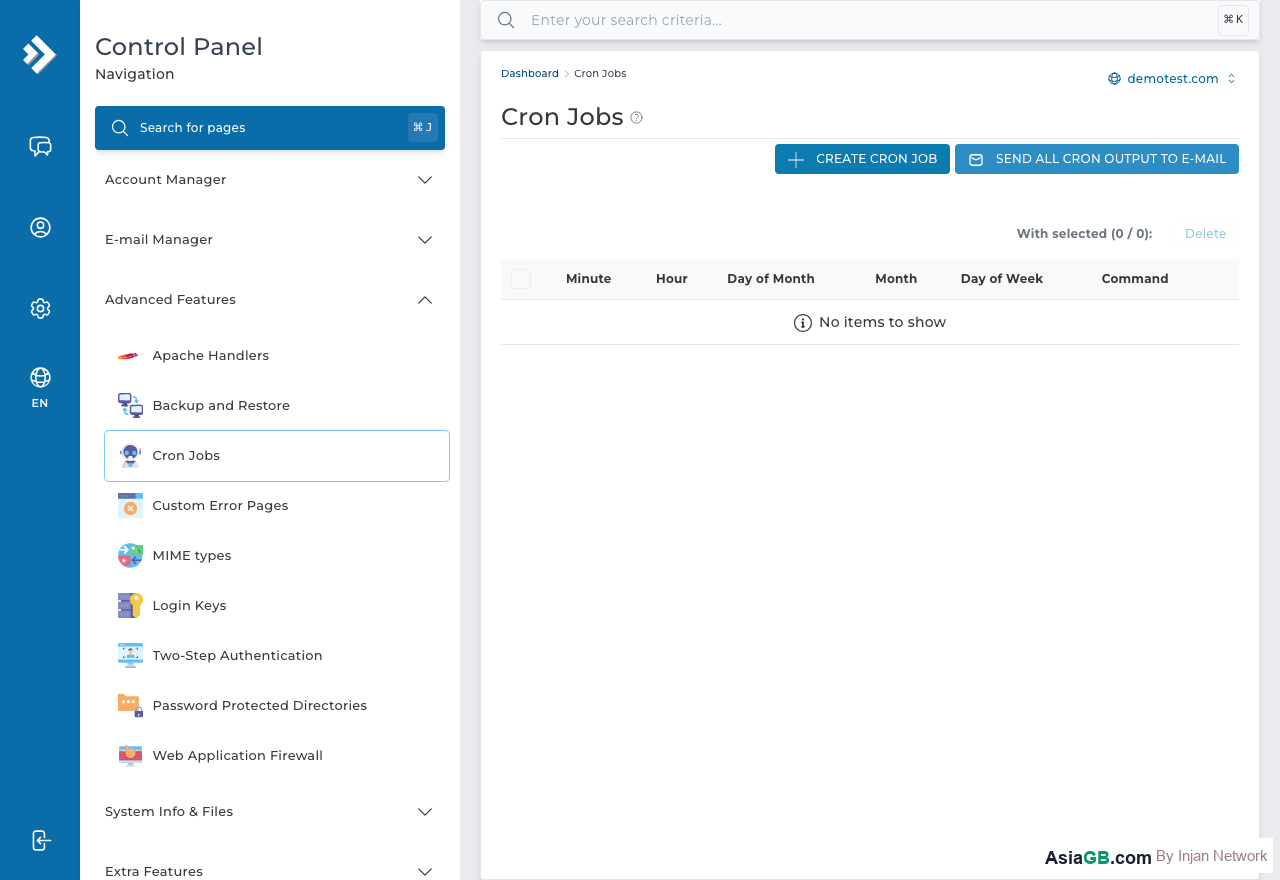
- Log in to DirectAdmin and go to Advanced Features.
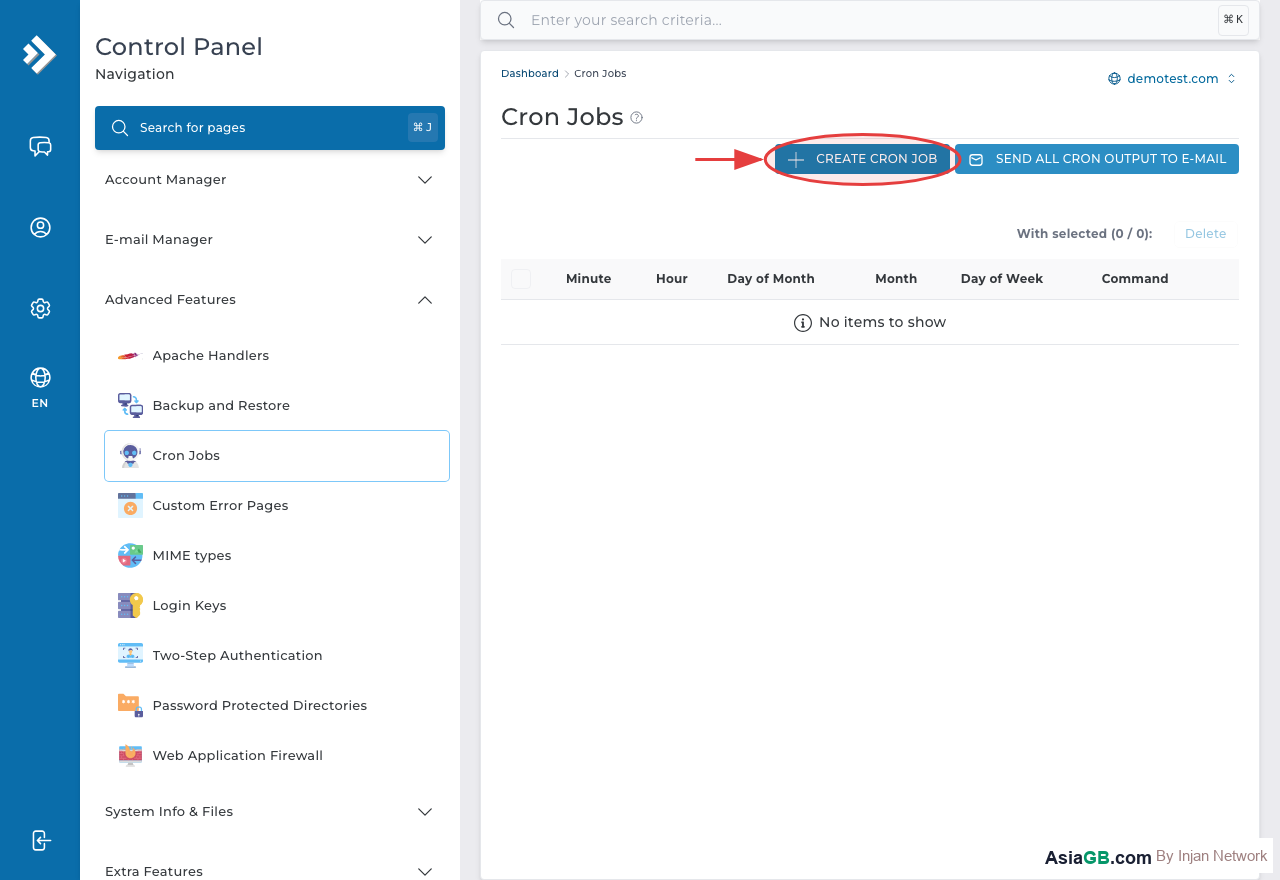
- Click on Cron Jobs.
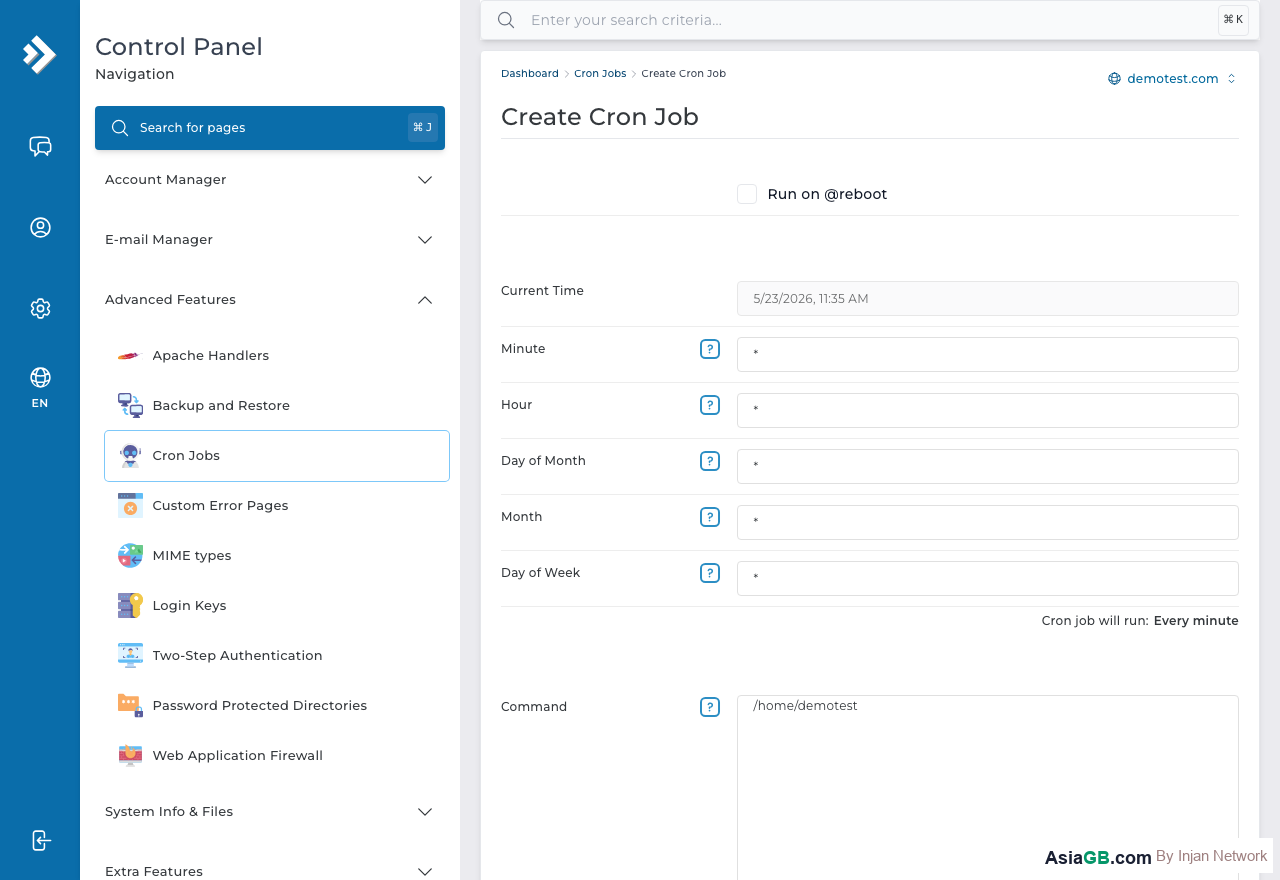
- Fill in the five time fields: Minute, Hour, Day, Month, and Weekday.
- In the Command field, enter the command or path to the script you want to execute.
- Optionally, enter your email address in the Email Output field to receive the output of the cron job each time it runs — useful for debugging.
- Click Add to save. The cron job is now scheduled and will run automatically.
Cron Expression Examples
Run Daily at Midnight
0 0 * * * — runs at 00:00 (midnight) every day of every month.
Run Every Hour
0 * * * * — runs at the start of every hour (00:00, 01:00, 02:00, etc.).
Run Every Monday at 8:00 AM
0 8 * * 1 — runs at 8:00 AM every Monday (day of week 1).
Run Every 30 Minutes
*/30 * * * * — runs at 00:00, 00:30, 01:00, 01:30, and so on throughout the day.
WordPress wp-cron.php Example
WordPress has its own scheduling system (WP-Cron) that fires when someone visits your site. On low-traffic sites, scheduled tasks like publishing scheduled posts or sending newsletters may not fire on time. The solution is to disable WP-Cron's internal trigger and replace it with a real server cron job.
First, add this line to your wp-config.php:
define('DISABLE_WP_CRON', true);
Then in DirectAdmin, add a cron job with this command (adjust the path to match your WordPress installation):
/usr/local/bin/php /home/username/public_html/wp-cron.php
Set it to run every 5–15 minutes: */15 * * * *
PHP Script Cron Job Example
To run a PHP script via cron, you need to call the PHP binary followed by the full path to your script:
/usr/local/bin/php /home/username/public_html/scripts/daily-report.php
If you are unsure which PHP binary path to use, check with your hosting provider or run which php via SSH. On DirectAdmin servers, the path is typically /usr/local/bin/php or you may need to specify a version such as /usr/local/bin/php81.
Viewing Output and Errors
When setting up a new cron job, always add your email address to the output field in DirectAdmin. This will send you any text that the script prints — including error messages — each time it runs. If the script runs silently with no output, you will not receive any email. To suppress email output for a job that is already confirmed working, add >/dev/null 2>&1 at the end of the command.
Test Before Adding to Cron: Always run your command manually in the terminal (via SSH) before adding it as a cron job. Verify that the script executes correctly, the paths are absolute, and the output is what you expect. A cron job that runs with errors at 2:00 AM every night and fills your mailbox with error messages is easy to avoid with a quick manual test first.
Common Use Cases for Cron Jobs
Cron jobs are one of the most versatile tools available on a hosting account. Once you understand the syntax, you can automate almost any repetitive server-side task. Here are the most common applications for website owners and developers:
- Automatic Backups — Schedule a database dump and file archive to run every night at 2:00 AM, ensuring you always have a recent recovery point without doing it manually.
- File Cleanup — Delete temporary files, expired session files, and old log files that accumulate over time and waste disk space.
- Email Notifications — Send scheduled digests, reminders, or newsletters to subscribers at consistent intervals.
- Data Updates — Pull RSS feeds, exchange rates, inventory data, or pricing from external APIs and refresh your database at regular intervals.
- Sitemap Regeneration — Rebuild your sitemap.xml each night so search engines always receive an up-to-date list of your pages.
- WordPress Maintenance — Replace WordPress's unreliable virtual cron with a real server cron to ensure scheduled posts publish on time and plugin tasks execute reliably.
- Cache Warming — Pre-load pages into your cache after a cache clear so the first real visitor does not experience a slow page load.
The key advantage of server-side cron over application-level scheduling (like WordPress WP-Cron) is that cron runs on a fixed schedule regardless of site traffic. It does not require a visitor to trigger it, making it reliable even on low-traffic sites.
Reading and Writing Cron Expressions Correctly
Before you can write cron expressions confidently, you need to understand the purpose of each of the five fields and the special characters available:
The Five Fields
- Field 1 — Minute (0–59): When in the hour to run.
30means at minute 30;*/15means every 15 minutes. - Field 2 — Hour (0–23): The hour in 24-hour format.
2means 2:00 AM;*/2means every 2 hours. - Field 3 — Day of Month (1–31): The calendar day.
1means the 1st of the month;*means every day. - Field 4 — Month (1–12): The calendar month.
1means January;*means every month. - Field 5 — Day of Week (0–7): 0 and 7 both mean Sunday, 1 is Monday, and 6 is Saturday.
Special Characters
*— Matches every value in that field./— Step value.*/5in the minute field means every 5 minutes.-— Range.1-5in the weekday field means Monday through Friday.,— List.0,12in the hour field means midnight and noon.
Quick Reference Examples
0 3 * * *— Every day at 3:00 AM (ideal for nightly backups)*/30 * * * *— Every 30 minutes0 8 * * 1-5— 8:00 AM Monday through Friday0 8 1 * *— 8:00 AM on the 1st day of every month
Debugging Cron Jobs That Do Not Run
If you have added a cron job but nothing seems to happen, these are the most common causes and how to fix them:
PATH Environment Is Not Loaded
When cron executes a command, it does not load your shell environment. The PATH variable that works in your SSH terminal is not available to cron. Commands like php, python3, and mysql will not be found unless you use the full absolute path. Check the correct path by running which php in your SSH session. On most DirectAdmin servers, PHP is at /usr/local/bin/php or /usr/bin/php.
Capture Output to a Log File
Cron does not display output on screen. If your script has an error, you will have no way to know unless you capture the output. Append this to the end of your cron command to log all output and errors:
/usr/local/bin/php /home/user/public_html/cron.php >> /tmp/mycron.log 2>&1
After the cron runs, open /tmp/mycron.log in the File Manager to read the output and identify any errors.
Script Permissions and Memory Limits
Verify that your PHP script has the correct file permissions (644 is standard) and that your script does not exceed the server's memory limit. A script that runs out of memory will terminate silently, leaving no error message.
Best Practices for Cron Jobs on Shared Hosting
Shared hosting cron jobs share server resources with other accounts, so there are some additional considerations compared to a VPS or dedicated server:
Use the Correct PHP Version Path
DirectAdmin shared hosting typically has multiple PHP versions installed side by side (e.g., /usr/bin/php74, /usr/bin/php81, /usr/bin/php83). Always specify the same PHP version in your cron command as the one your website uses — otherwise your script may encounter compatibility errors from a mismatched PHP version.
Prevent Overlapping Runs
If your script takes longer to complete than the interval at which it is scheduled, multiple instances will run simultaneously, multiplying resource usage. Use a lock file mechanism in your script to prevent overlap — write a lock file at the start of execution and delete it at the end, and have the script exit immediately if it finds the lock file already exists.
Set Memory and Time Limits
Add resource limits at the top of your PHP script to prevent runaway processes from consuming excessive server resources:
ini_set('memory_limit', '128M');
set_time_limit(300);
Suppress Email Output on Working Jobs
During initial setup, enable email output in DirectAdmin to catch errors. Once the cron job is confirmed working, disable the email by adding MAILTO="" at the start of your cron command or redirecting output to /dev/null. Without this, every cron execution generates an email, which can flood your inbox and fill your mail quota.
Do Not Schedule Too Frequently
On shared hosting, avoid scheduling cron jobs more frequently than every 5 minutes. If your application genuinely requires per-minute execution, consider upgrading to a VPS where you have dedicated resources and full cron control without impacting other accounts on the server.
Practical Cron Job Examples for Common Hosting Tasks
Once you understand cron syntax and best practices, these ready-to-use examples cover the most common automated tasks that website owners and developers run on DirectAdmin shared hosting. Copy and adjust the username and paths to match your account:
Weekly Database Backup
Run every Sunday at 2:30 AM to export your MySQL database to a backup file:
30 2 * * 0 /usr/bin/mysqldump -u dbuser -p'dbpassword' dbname >> /home/username/backups/db-weekly.sql
Store backups outside public_html so they are not accessible via the web. Rotate old backup files monthly to avoid filling up your disk quota.
Daily Log Cleanup
Run every night at 3:00 AM to delete log files older than 30 days from your application log directory:
0 3 * * * /usr/bin/find /home/username/public_html/logs/ -name "*.log" -mtime +30 -delete
Cache Purge Every 6 Hours
Run a PHP script every 6 hours to clear expired cache files and keep your site serving fresh content:
0 */6 * * * /usr/local/bin/php /home/username/public_html/scripts/clear-cache.php
Nightly Sitemap Regeneration
Run at 1:00 AM every night to rebuild your sitemap.xml from the database, so search engine crawlers always receive an up-to-date page list:
0 1 * * * /usr/local/bin/php /home/username/public_html/sitemap-generate.php >> /tmp/sitemap.log 2>&1
Spreading tasks across different times — 1:00 AM, 2:30 AM, 3:00 AM, every 6 hours — distributes the server load and prevents multiple heavy scripts from running simultaneously and competing for resources.
VPS for Full Cron Control
Need cron jobs with root access, custom intervals, and no restrictions? AsiaGB VPS gives you complete control over your server's cron daemon.
View VPS Plans