
MIME types (Multipurpose Internet Mail Extensions) tell web browsers how to interpret files sent by the server. Every file the server sends is accompanied by a MIME type header, and the browser uses this to decide whether to display the file, play it, download it, or pass it to a plugin. When a file type is missing from the server's MIME type list, browsers may handle it incorrectly — fonts may not load, modern image formats may not display, and API responses may break.
What Is a MIME Type?
A MIME type is a two-part identifier in the format type/subtype. The first part is the general category (such as text, image, application, or font) and the second part is the specific format. For example, text/html identifies an HTML document, while image/jpeg identifies a JPEG image.
When a browser requests a file, the server sends back a Content-Type HTTP header containing the MIME type. The browser then renders or processes the file accordingly. If the MIME type is wrong or missing, the browser may display the file as plain text, prompt a download, or refuse to use it.
Common MIME Types
text/html— HTML documentstext/css— CSS stylesheetsapplication/javascript— JavaScript filesapplication/json— JSON data filesimage/jpeg— JPEG imagesimage/png— PNG imagesimage/svg+xml— SVG vector graphicsimage/webp— WebP imagesfont/woff— WOFF web fontsfont/woff2— WOFF2 web fonts (modern, compressed)application/pdf— PDF documents
When Do You Need Custom MIME Types?
Most standard file types are already registered in the server's global MIME type database. You need to add a custom MIME type when:
- You use a newer file format that the server does not yet recognize (e.g.,
.webpon older Apache versions) - Your web fonts are not loading due to a missing MIME type for
.woff2 - Your API returns
.jsonfiles but the browser is downloading them instead of processing them - You are serving custom file types for a specialized application
How to Add a MIME Type in DirectAdmin
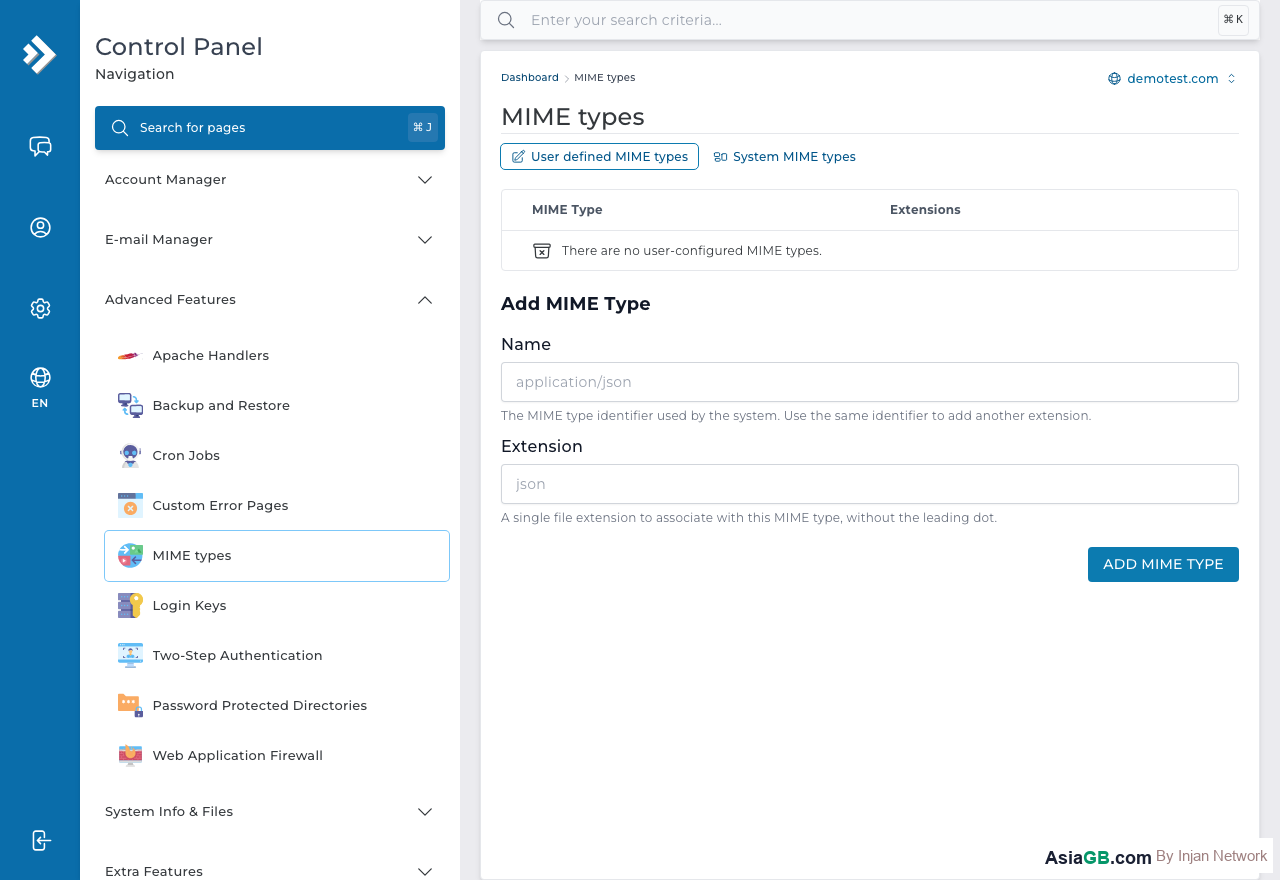
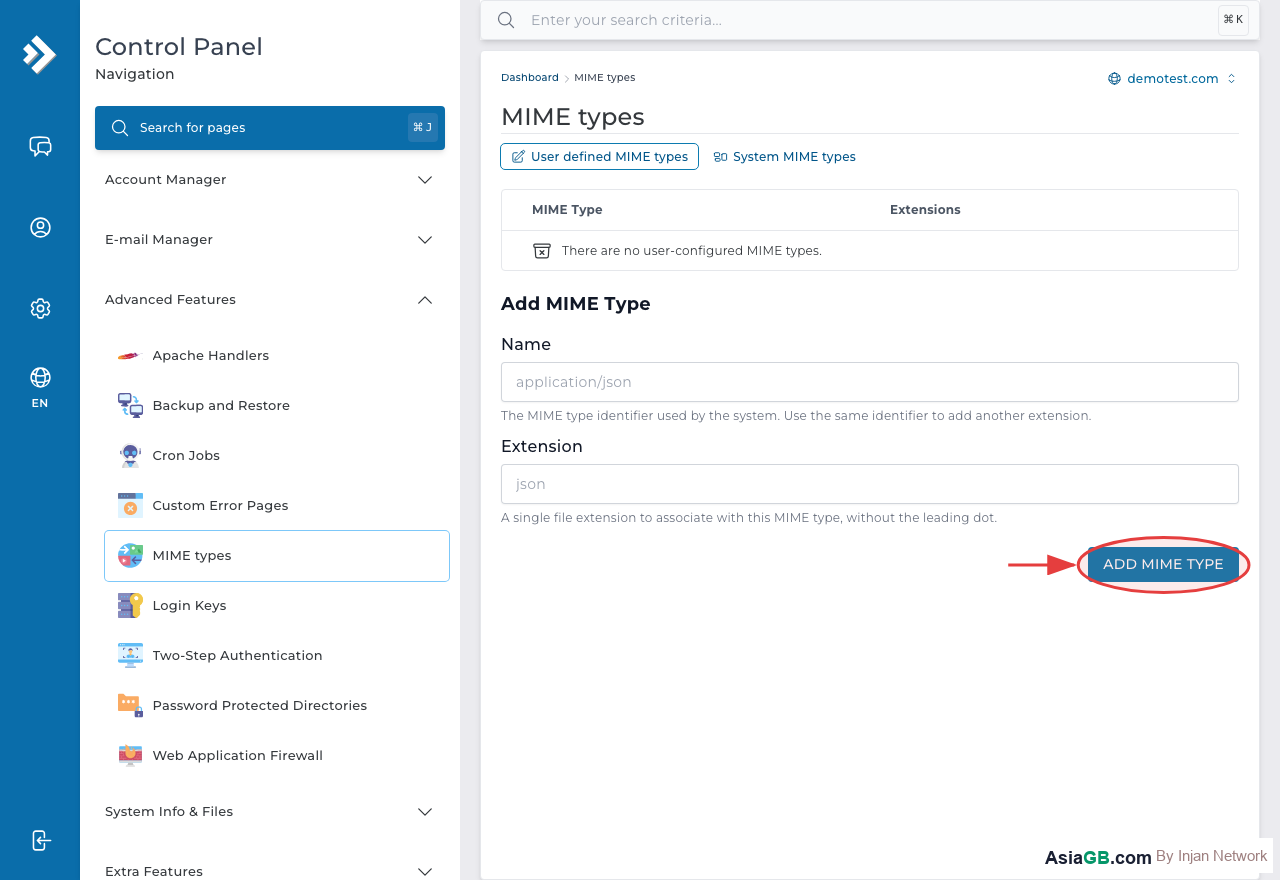
- Log in to DirectAdmin and go to Advanced Features.
- Click on MIME Types.
- In the Add MIME Type form, enter the MIME type string in the first field — for example,
image/webp. - In the Extension field, enter the file extension without the dot — for example,
webp. - Click Add to save. The new MIME type will now apply to all files with that extension served from your account.
Important Modern MIME Types to Add
.webp — WebP Images
WebP is a modern image format by Google that provides better compression than JPEG and PNG. MIME type: image/webp, extension: webp. Most modern Apache versions include this by default, but older servers may need it added manually.
.woff2 — Web Fonts
WOFF2 is the most efficient web font format and is used by virtually all modern font services. MIME type: font/woff2, extension: woff2. Without this, self-hosted fonts may fail to load or trigger browser security warnings.
.json — JSON Data
JSON files used by APIs or configuration endpoints need the MIME type application/json to be processed correctly by browsers and frameworks. Extension: json.
.svg — SVG Vector Graphics
SVG images used in logos and icons require MIME type image/svg+xml. Extension: svg. Without the correct MIME type, some browsers will not render SVGs inline.
Adding MIME Types via .htaccess
If you prefer to manage MIME types at the directory level rather than account level, you can add them directly to your .htaccess file using Apache's AddType directive:
AddType image/webp .webp
AddType font/woff2 .woff2
AddType application/json .json
AddType image/svg+xml .svg
This approach applies only to the directory where the .htaccess file is located and its subdirectories, making it ideal for per-domain or per-application configuration.
Custom MIME Types for Modern File Formats
As web technologies advance, new file formats emerge that older Apache servers may not recognize by default. Here are the most important custom MIME types to add for modern web development.
.wasm — WebAssembly Modules
WebAssembly allows high-performance code to run in the browser at near-native speed. The MIME type is application/wasm with extension wasm. Browsers enforce strict MIME type checking for WebAssembly — if the server returns the wrong type, the module will be completely rejected with a console error. This is mandatory for any site using WebAssembly-based features, including image editors, video processors, or in-browser games.
.webmanifest — Progressive Web App Manifest
The Web App Manifest file controls how your Progressive Web App appears on a user's home screen. The correct MIME type is application/manifest+json with extension webmanifest. Without this MIME type, browsers will not recognize the manifest file, which means the "Add to Home Screen" prompt will never appear and your PWA install experience will be broken.
.avif — AVIF Next-Generation Images
AVIF (AV1 Image File Format) is a modern image format that provides significantly better compression than WebP while maintaining excellent visual quality. The MIME type is image/avif with extension avif. Most older Apache installations do not include this MIME type by default, so it must be added manually. Once configured, browsers that support AVIF (Chrome, Firefox, and modern Safari) will serve the smaller AVIF files automatically through the <picture> element.
.ico — Favicon Files
On some server configurations, .ico files are served with an incorrect MIME type such as text/plain, which causes browsers to not display the favicon. If your site favicon is not showing, add MIME type image/x-icon with extension ico. You can also add this through .htaccess: AddType image/x-icon .ico.
MIME Types and the Content-Type HTTP Header
Understanding the relationship between MIME types and HTTP headers helps you diagnose and fix issues faster. Every time a browser requests a file, the server includes a Content-Type response header that tells the browser what kind of content it is receiving.
How Content-Type Is Set
The Content-Type header value comes directly from the MIME type registered for that file extension on the server. When you add a MIME type in DirectAdmin, you are telling Apache to send that value as the Content-Type header for all files with that extension served from your account. For example:
Content-Type: image/webp— tells the browser to render this as a WebP imageContent-Type: font/woff2— tells the browser this is a web font it can useContent-Type: application/wasm— tells the browser this is a WebAssembly moduleContent-Type: application/octet-stream— the default fallback when the server does not recognize the file type, which always results in a download prompt
Verifying Content-Type in Browser DevTools
To check what Content-Type your server is actually sending, open Chrome or Firefox DevTools with F12, go to the Network tab, reload the page, and click on the file you want to inspect. In the Response Headers section, look for the content-type field. If it shows application/octet-stream when you expect something specific (like image/avif or font/woff2), you need to add or correct the MIME type configuration.
Troubleshooting Files That Download Instead of Display
One of the most frustrating web server issues is when a file that should be displayed in the browser is instead downloaded as a file. This is almost always a MIME type problem. Here is a systematic approach to diagnosing and fixing it.
Common Problems and Their Fixes
- WebP images prompt a download dialog — Add MIME type
image/webp, extensionwebp. This is common on Apache versions older than 2.4.16. - WOFF2 fonts fail to load or trigger browser warnings — Add MIME type
font/woff2, extensionwoff2. Also verify that your server is sending CORS headers allowing fonts to be loaded cross-origin if needed. - JSON files download instead of being parsed by JavaScript — Add MIME type
application/json, extensionjson. Also ensure your API responses include the correct Content-Type in the PHP or application code. - SVG images appear as raw XML text instead of rendering — Add MIME type
image/svg+xml, extensionsvg. - WebAssembly module fails with MIME type error in console — Add MIME type
application/wasm, extensionwasm. Chrome enforces this strictly and will refuse to compile the module without it.
Step-by-Step Troubleshooting Workflow
- Open DevTools (F12) and go to the Network tab.
- Reload the page and click on the file that is not behaving correctly.
- Check the Response Headers section and find
content-type. - If the value is
application/octet-streamor incorrect, note the file extension. - Go to DirectAdmin > Advanced Features > MIME Types and add the correct mapping.
- Alternatively, add
AddType [mime-type] .[extension]to your.htaccessfile. - Hard refresh the browser with Ctrl+Shift+R (or Cmd+Shift+R on Mac) to bypass cache.
- Check the Network tab again to confirm the
content-typeheader has updated.
Important: Missing MIME types are one of the most common causes of web font loading failures and modern image format rendering issues. If your site uses self-hosted fonts (WOFF2) or WebP images and they are not displaying correctly, check your MIME type configuration first. A five-minute fix in DirectAdmin can resolve what looks like a complex rendering bug.
Hosting with Full Server Configuration Access
AsiaGB hosting plans include DirectAdmin with MIME type management, .htaccess support, and full control over how your server handles every file type.
View Hosting Plans